Bedrock resource pack guide
How to Use Downloaded Resource Packs in Minecraft Bedrock: 7 Safe Steps
If you downloaded a Minecraft Bedrock resource pack and it does not appear in your world, the problem is usually one of four things: the file type is wrong, Minecraft did not import it, the pack was not activated in the world, or the download came from a stale mirror.
This guide keeps the answer practical: check the source, keep the extension, import the pack, activate it in a copied world, then troubleshoot from the world settings instead of downloading another random file.
Start here
How to Use Downloaded Resource Packs in Minecraft Bedrock After Download
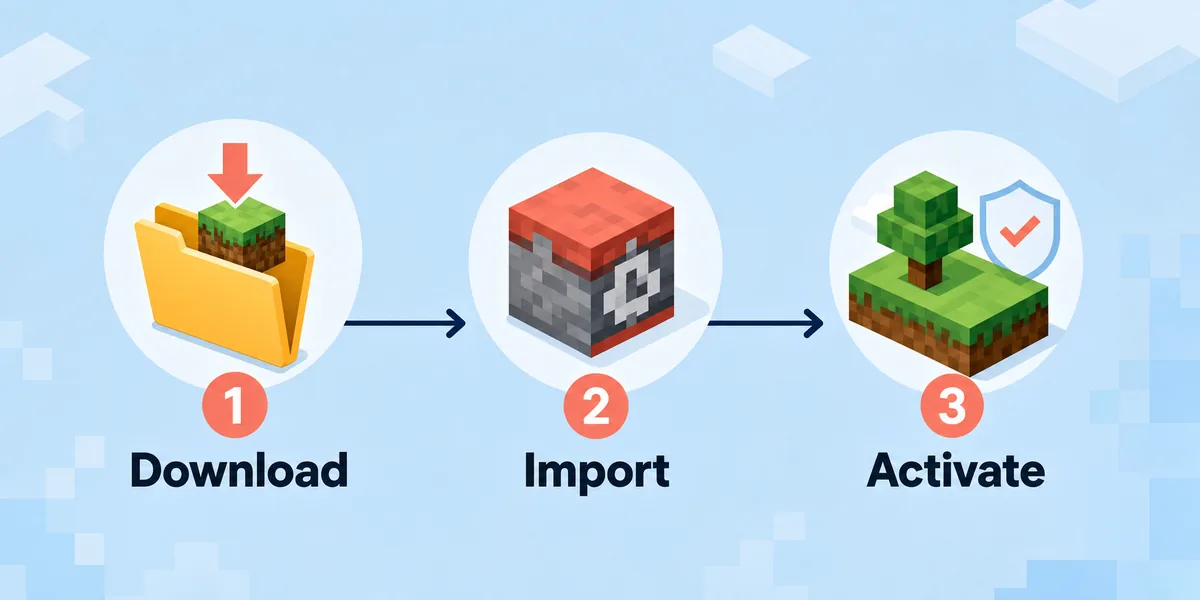
To use downloaded resource packs in Minecraft Bedrock, first confirm that the file is meant for Bedrock and uses a Bedrock package format such as .mcpack, .mcaddon, or a valid zipped pack structure. Then open the file with Minecraft, wait for the import message, and activate it from the resource pack area of the target world. A successful download is not enough; Bedrock resource packs usually need world-level activation before textures, sounds, or models appear.
The safest workflow is to test the pack in a copied world before using it in a main save. Resource packs are usually less risky than behavior packs, but a combined .mcaddon can include both resource and behavior components. That is why this page treats source checks, file type, and world activation as one process rather than three unrelated tasks.
Best file clues
Look for Bedrock wording plus .mcpack or .mcaddon. A Java .zip resource pack may not behave the same way in Bedrock.
Best first test
Use a copied world. If the pack fails, you can delete the copy without changing your main world.
Best source habit
Prefer official, marketplace, creator, CurseForge, MCPEDL, or clearly maintained source pages over rehosted mirrors.
Step by step
7 Steps to Use a Downloaded Bedrock Resource Pack
Follow the steps in order. Skipping the source and activation checks is the most common reason a downloaded pack appears to do nothing.
Confirm the pack is for Bedrock
Read the source page before downloading. Bedrock packs should mention Bedrock, MCPE, .mcpack, .mcaddon, or an import flow that opens Minecraft Bedrock.
Check the file extension
Keep the original extension. Do not rename a Java .zip to .mcpack unless the creator explicitly says the file is a Bedrock pack.
Scan the source context
Look for version notes, update date, screenshots, comments, and install instructions. A page with no date or platform context is a weaker source.
Open or import the file
On many devices, opening a .mcpack or .mcaddon sends it to Minecraft. If that fails, use the device file manager or Minecraft storage import path recommended by the source.
Wait for the import message
Minecraft should show whether the import succeeded or failed. If it fails, do not retry a mirror first; check whether the file is corrupted or for the wrong edition.
Activate it in world settings
Open the target world settings, find resource packs, move the downloaded pack into Active, and accept any dependency prompt if the pack requires another component.
Test textures before playing
Load a copied world and check a block, item, mob, or menu element the pack is supposed to change. If nothing changes, restart Minecraft and test again with other packs disabled.
Source check
Check the Download Source Before You Import Anything
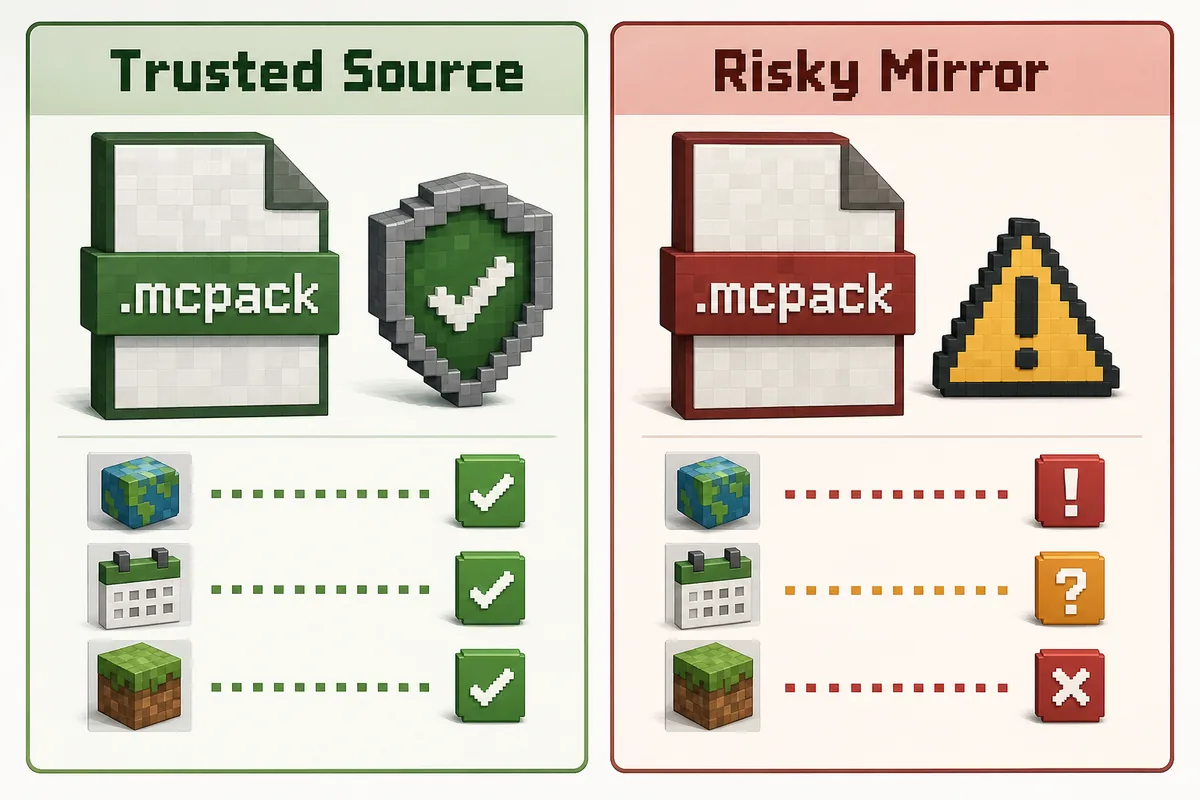
A resource pack guide should not start with the button. It should start with the source. Similarweb's question keyword data showed demand around Bedrock resource pack usage, but the search results often mix YouTube walkthroughs, pack directories, and exact pack pages. That means users need a decision checklist as much as they need installation steps.
A trustworthy source page normally shows the creator, file type, update date, supported Minecraft versions, comments or change notes, and a clear platform label. A risky mirror often gives a loud download button but hides the pack format, date, or creator context. If you cannot tell whether the file is for Bedrock, treat it as unverified.
For Verity Minecraft users, this matters because Bedrock add-ons and Java mods are easy to confuse. The Verity Bedrock path uses add-on language, while Java uses .jar files and loader notes. A broad Minecraft resource pack page can still help, but only when it teaches the same source-first habit.
Do not claim that a file is safe just because the title says latest. Safety is a process: identify the source, check the platform, read update notes, keep backups, and avoid APK/torrent-style detours when all you need is a Bedrock resource pack.
File types
Resource Pack, Behavior Pack, or Add-on?
Use this table when the download name is confusing. The file label tells you where to activate it and how carefully to test it.
World activation
Activate the Pack in a Test World Before Your Main World
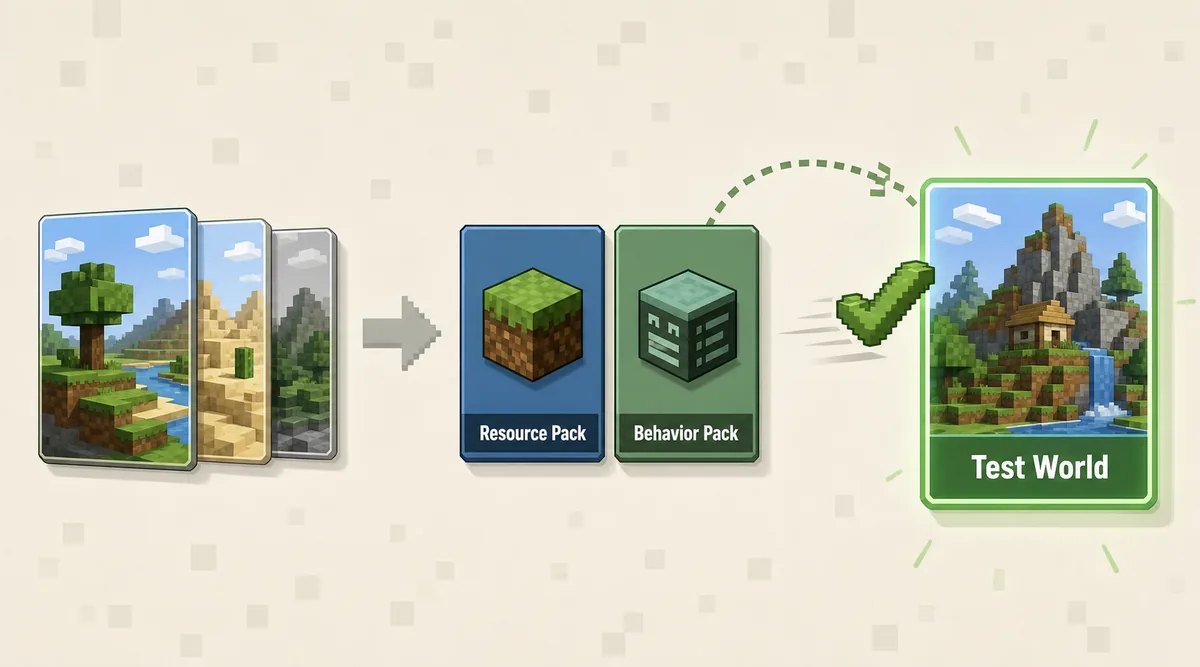
Bedrock stores resource packs globally after import, but a world still needs to use the pack. This is why a pack can import successfully and still appear invisible in game. Open the world settings, move the pack to Active, and check whether dependencies or experimental toggles are requested.
If the pack includes a behavior component, the risk level changes. Behavior packs can affect entities, recipes, loot, functions, and world behavior. You should activate them in a copied world first, especially when the page describes horror mobs, custom AI, or scripted interactions.
When the pack does not show up, check the simple causes first: Minecraft needs a restart, the file was imported into a different account/profile, the pack is nested one folder too deep, or another pack is overriding the same texture. Disable other packs during the first test so you can isolate the problem.
If the source page lists a Minecraft version, treat it as a real compatibility clue. A pack created for a specific Bedrock build may import on a newer game but fail to change the expected assets. Version notes are not decoration; they are troubleshooting data.
Troubleshooting
Common Mistakes That Make Bedrock Packs Look Broken
Most failures are not mysterious. They come from edition mismatch, source confusion, activation mistakes, or pack conflicts.
Installing the Java version
Java resource packs and Bedrock packs can share similar names, but the install flow and folder structure are not interchangeable.
Only importing, not activating
The import message means Minecraft received the pack. It does not guarantee the current world is using it.
Trusting stale mirrors
A rehosted file can be outdated or repackaged. Check the source date and creator context before using it.
Testing with too many packs
Multiple packs can override the same assets. Test the new pack alone first, then add the rest back one at a time.
Related
Related Verity Minecraft Guides
Use these pages when the issue is not just a resource pack import.
Verity Bedrock Download
Use this for the Verity .mcaddon source path.
Open Bedrock guideHow to Install Verity Minecraft
Use this for Java, Bedrock, and PE setup differences.
Read install guideVerity Minecraft Versions
Use this to compare current source snapshots and platform notes.
Check versionsReferences
Sources Used for This Guide
These references support the Bedrock resource pack and add-on workflow. Source pages can change, so check them again before installing a specific pack.
Microsoft Bedrock resource pack documentation
Official or first-party context used to verify Bedrock resource pack and add-on behavior.
Open sourceMinecraft Bedrock Add-Ons FAQ
Official or first-party context used to verify Bedrock resource pack and add-on behavior.
Open sourceVerity Bedrock source listing
Official or first-party context used to verify Bedrock resource pack and add-on behavior.
Open sourceFAQ
Minecraft Bedrock Resource Pack FAQ
How do I use downloaded resource packs in Minecraft Bedrock?
Import the .mcpack, .mcaddon, or valid Bedrock pack file into Minecraft, then activate it from the target world's resource pack settings. Test in a copied world first.
Why did my Bedrock resource pack import but not work?
It may not be active in the world, Minecraft may need a restart, the file may be for Java Edition, or another active pack may override the same textures.
Where do I download Minecraft Bedrock add-ons safely?
Prefer official Minecraft sources, Marketplace pages, creator pages, CurseForge, MCPEDL, or other maintained pages with clear platform, file type, update date, and creator context.
Can a .mcaddon include both resource and behavior packs?
Yes. A .mcaddon can bundle both parts. After import, check whether Bedrock asks you to activate both resource and behavior components.
Should I rename a ZIP file to .mcpack?
Only do that if the creator says the ZIP is a Bedrock pack packaged that way. Renaming a Java resource pack does not make it Bedrock-compatible.