Bedrock add-ons guide
How to Add Addons to Minecraft Bedrock: 7 Safe Steps
To add addons to Minecraft Bedrock, first confirm that the file is meant for Bedrock, keep the original .mcaddon or .mcpack extension, open it with Minecraft, wait for the import message, and then activate the add-on in the world settings. A download alone does not change a world until the correct pack is active.
This guide focuses on safe source checks, file-type decisions, import behavior, and what to do when an add-on appears to import but does not work. It is written for Verity Minecraft readers who may be moving between Java, Bedrock, PE, resource packs, and behavior packs.
Bedrock add-ons guide
Quick Answer: Add the File, Then Activate It in a World
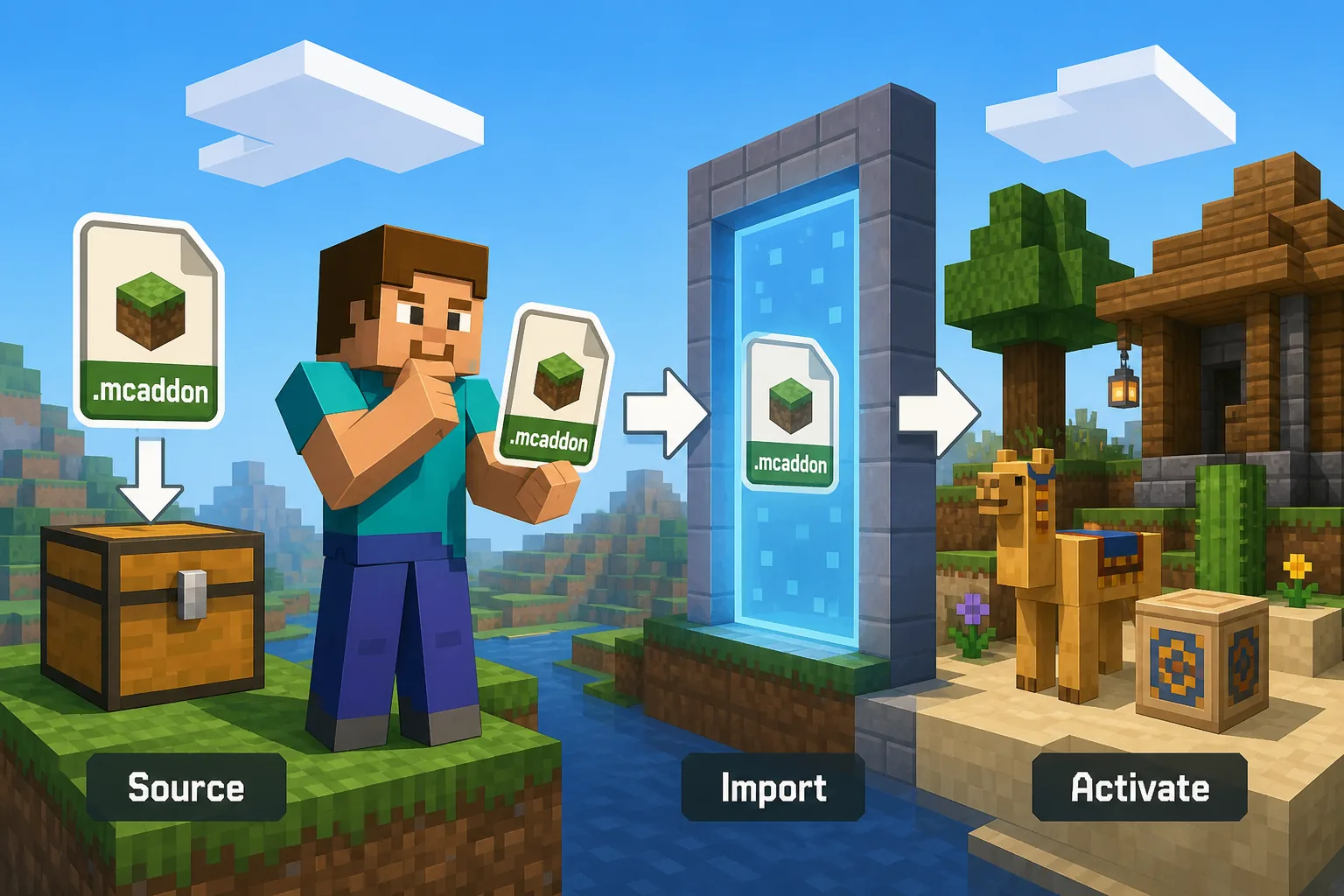
The safest workflow is source first, file second, world third. Read the source page before you download, make sure it says Minecraft Bedrock or MCPE, then check that the file extension matches the expected package type. Bedrock add-ons commonly arrive as .mcaddon, .mcpack, or a zipped pack structure. A Java .jar file belongs to Java Edition and should not be forced into Bedrock.
After the file is downloaded, open it with Minecraft Bedrock rather than renaming it. On many devices this starts an import. When the import succeeds, open a copied test world, go to the world settings, and move the behavior pack or resource pack into the Active area. Some add-ons include both parts, so activate both if the source page says the add-on has dependencies.
If the add-on does nothing, do not immediately download another mirror. First check whether it is active in the target world, whether experiments are required, whether the Minecraft version matches the source notes, and whether you installed a resource pack when the add-on actually needs a behavior pack.
Best file signal
Look for .mcaddon or .mcpack plus explicit Bedrock wording on the source page.
Best safety habit
Test in a copied world before using the add-on in a main survival or realm world.
Most common mistake
Importing the file but forgetting to activate it in the specific world.
Bedrock add-ons guide
7 Steps to Add Addons to Minecraft Bedrock
Follow the order below. Most failed installs come from skipping the source check, using a Java file, or importing the add-on without activating it.
Choose a Bedrock source
Use official, creator, marketplace, CurseForge, MCPEDL, or other maintained pages that show platform, update date, file type, and creator context.
Check the package type
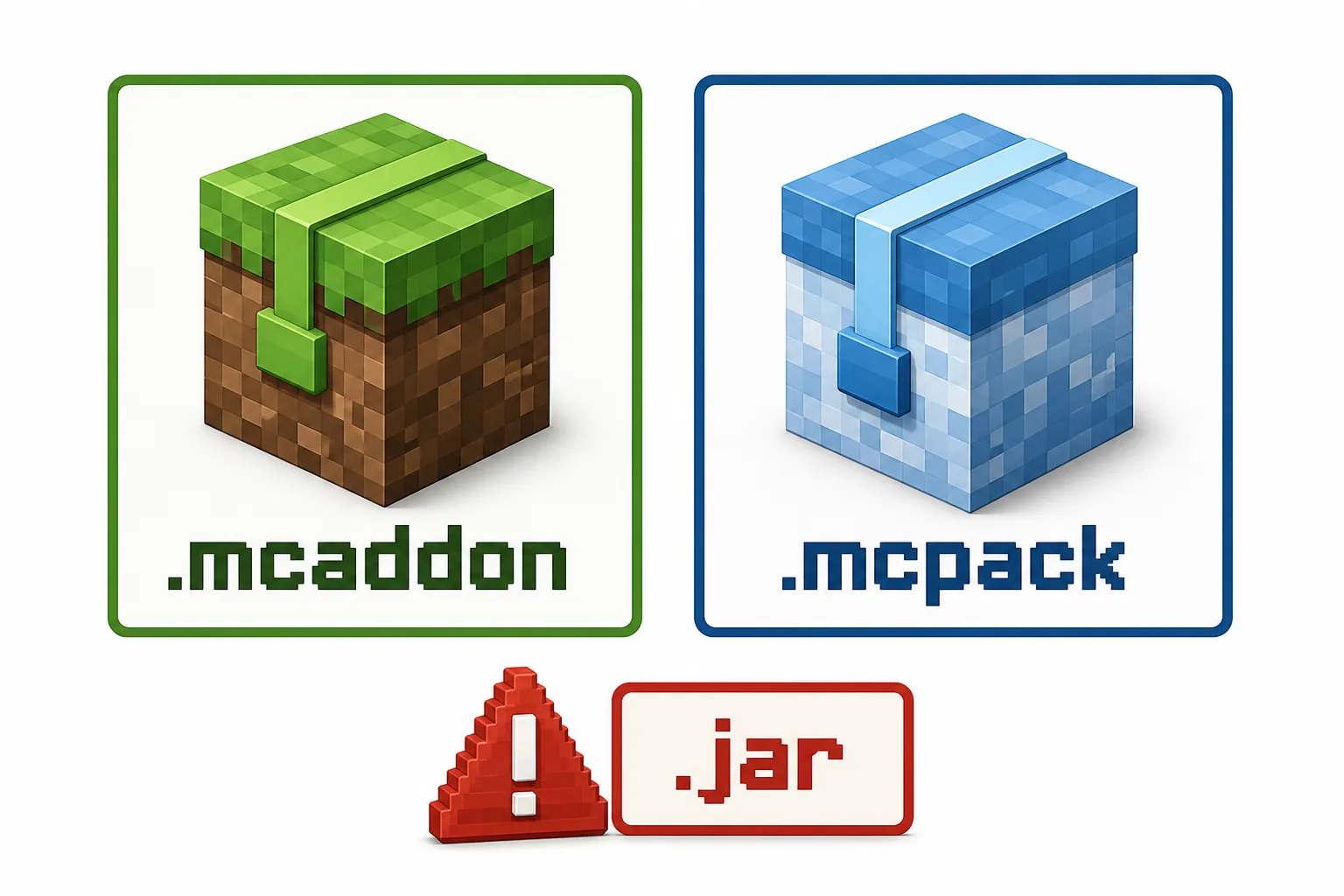
Prefer .mcaddon for a combined add-on or .mcpack for a single pack. Do not rename a Java .jar or Java resource pack and expect Bedrock to read it.
Read version notes
Compare the listed Minecraft Bedrock version with your installed game. If the source page lists a newer file than this guide, the source page wins.
Back up the world
Copy the target world before enabling behavior changes, experimental toggles, or packs that affect mobs, loot, recipes, or generation.
Open with Minecraft
Use the platform's Open with Minecraft flow when available. Wait for the import message before changing world settings.
Activate required packs
Open the world settings, move behavior packs and resource packs into Active, and accept dependency prompts only when they match the source page.
Test and troubleshoot
Load the copied world, check whether the expected feature appears, then review active packs, dependencies, experiments, and version notes if it fails.
Bedrock add-ons guide
Know the Difference Between .mcaddon, .mcpack, and .jar
.mcaddon usually packages add-on behavior and sometimes resource files together. .mcpack is often a single Bedrock pack, commonly a resource pack but not always enough for gameplay changes by itself. .jar is a Java mod file and belongs to the Java loader ecosystem, not to the Bedrock import flow.
This distinction matters for Verity Minecraft because the site separates Bedrock add-on downloads from Java mod downloads. If you searched for a Bedrock add-on but downloaded a Java .jar, the fix is not a rename; the fix is to return to the correct source family.
Bedrock add-ons guide
Add-on Package Decision Table
Use this table before importing a file from any download page.
Bedrock add-ons guide
Activate the Add-on in a Copied World
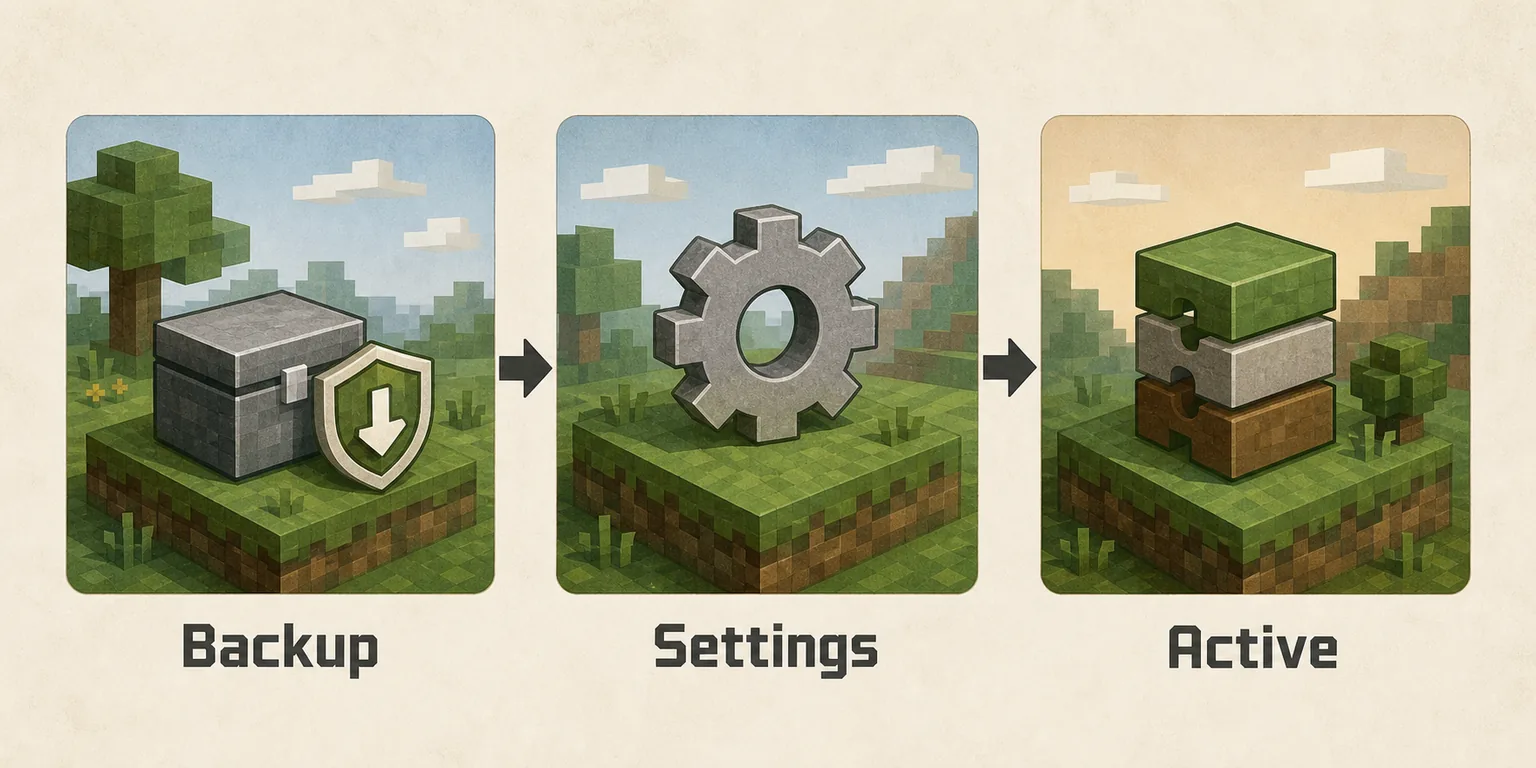
Bedrock can import a package globally while leaving the current world unchanged. That is why a successful import message is not the same as a working add-on. Open the world settings, find behavior packs and resource packs, and move the required entries to Active.
A copied world protects your main save from broken dependencies, experimental settings, and unexpected mob or block behavior. If the add-on works in the copy, then decide whether to use it in the main world. If it does not work, remove it from the copy and review the source notes instead of stacking more packs on top.
Bedrock add-ons guide
Troubleshooting: Why the Add-on Does Not Show Up
Start with the low-risk checks before replacing the file.
Imported but inactive
The file was imported, but the target world still has no active behavior or resource pack entry.
Wrong edition
A Java file, Java resource pack, or Java-only mod will not behave like a Bedrock add-on.
Missing dependency
Some add-ons require both behavior and resource packs, or ask for an experiment toggle.
Version mismatch
A pack can import on a newer game but fail because the source page targets a different Bedrock version.
Stale mirror
A mirror may rename, rehost, or delay updates. Prefer source pages with dates, comments, and creator context.
Server limits
Realms and servers may require owner-side pack settings, so a personal-device install may not affect a shared world.
Related
Related Verity Minecraft Guides
Use these pages when the problem is the edition, version, or resource-pack side of the install.
Verity Bedrock Download
Use the Verity .mcaddon source path and Bedrock download notes.
Open Bedrock guideHow to Install Verity Minecraft
Compare Java, Bedrock, and PE install flows before choosing a file.
Read install guideBedrock Resource Packs
Use this when textures or resource packs import but do not appear in the world.
Read pack guideVerity Minecraft Versions
Check current source snapshots and compatibility reminders.
Check versionsAdd add-ons to a Bedrock dedicated server
Use BDS folders, world pack lists, and client-sync checks for a self-hosted server.
Read server guideSources
Official and Source References
These references support the Bedrock add-on workflow and source-first safety checks. Always re-check the exact add-on page before downloading.
Minecraft Help Add-Ons FAQ
Official Minecraft Help reference for Bedrock add-on concepts and platform context.
Open FAQMicrosoft Bedrock resource pack documentation
Official creator documentation that explains Bedrock pack structure and packaging ideas.
Read docsVerity Bedrock source listing
Source page checked for the current Verity Bedrock file path before publishing this guide.
Check sourceBedrock add-ons guide
Minecraft Bedrock Add-ons FAQ
How do I add addons to Minecraft Bedrock?
Download a Bedrock package from a maintained source, open it with Minecraft, wait for import, then activate the required behavior or resource pack in the target world settings.
Is .mcaddon the same as .mcpack?
.mcaddon often combines add-on parts, while .mcpack is usually one Bedrock pack. The source page should explain whether you need one or both.
Can I use Java .jar mods in Bedrock?
No. Java .jar mods need a Java Edition loader. Use the Java page if the file is a .jar.
Why did the add-on import but not work?
It may not be active in the world, may require another pack, may need an experiment toggle, or may target a different Bedrock version.
Where should I download Minecraft Bedrock addons?
Prefer official, creator, marketplace, CurseForge, MCPEDL, or maintained source pages with update dates, version notes, and creator context.