Bedrock dedicated server guide
How to Install Minecraft Bedrock Server Add-ons
To add Minecraft Bedrock server add-ons, stop and back up the dedicated server, copy each extracted pack into the matching server folder, then register its header UUID and version in the active world's pack list. Start with one pack and test with a second player before adding more.
This is the file-based workflow for a self-hosted Bedrock Dedicated Server (BDS). It is different from importing a .mcaddon into your own local world, and it does not give you direct access to Realms or a hosting provider's private control panel. Check the pack manifest and your server version before you change a shared world.
Quick answer
Put the files on the server, then attach them to its active world
A Bedrock Dedicated Server does not install an add-on by opening a .mcaddon file in the server console. A .mcaddon is a convenient import package for a Bedrock client. For BDS, extract the pack folders, separate behavior packs from resource packs, and copy them into the corresponding directories beside the server files.
The server only uses packs that are registered for the world it is loading. Add the pack's header UUID and version to that world's world_behavior_packs.json or world_resource_packs.json file. Keep the original pack manifest.json with the folder; the UUID in the world list must match the pack header, not a module UUID or a folder name.
Make a complete copy of the world before editing. Stop the server first so it cannot write over your changes, and test the updated copy with one operator and one ordinary player. If the world is important, keep a rollback copy until the server has been restarted and the add-on has been exercised in normal play.
The Verity Bedrock source snapshot checked on September 23, 2026 lists ThatMob's Verity 4.0.0 for V26.50, uploaded September 17, 2026. That file listing identifies a package release; it does not prove that the pack supports every dedicated-server build, Realm, or world. Confirm the pack's own manifest and source notes before using it on a shared server.
Behavior pack
Adds or changes server-side rules and entities. Install it under behavior_packs and register it in the active world's behavior-pack list.
Resource pack
Supplies textures, sounds, or other client-facing assets. Install it under resource_packs and check whether joining players need to accept a download prompt.
World scope
A pack folder can exist on disk without being active. The world pack lists and the server's world-name setting determine what the server loads.
Installation
Add a pack to a Bedrock Dedicated Server in seven checks
Use this order for a self-hosted BDS installation. Hosting panels may rename folders or provide file tools, but the world and manifest checks still apply.
Confirm the server type and active world
Check that you control a Bedrock Dedicated Server, not a Realm. Read server.properties and note level-name; that value identifies the world directory under worlds. For a managed host, use its documented file manager or support instructions instead of assuming the local BDS path.
Match the pack to the game build
Open the pack's manifest.json and review its format version, minimum_engine_version, header UUID, header version, and any dependencies. Compare those requirements with the actual server release and supported pack type. A project page or filename alone cannot prove compatibility.
Stop the process and back up
Stop BDS cleanly before touching world data. Copy the entire active world folder and keep a separate copy of the current pack lists and server.properties. Label the backup with the world name and date so you can restore the right save if the server fails to load.
Extract and sort the pack folders
Unpack the download and locate the directory that directly contains manifest.json. Place behavior-pack folders in the server's behavior_packs directory and resource-pack folders in resource_packs. Avoid an extra nested folder level, and do not leave the pack inside a .zip or .mcaddon archive.
Register the pack for that world
In worlds/<level-name>/, add one object to world_behavior_packs.json or world_resource_packs.json for each pack of that type. Use pack_id for the manifest header UUID and version as the three-number array from the same header. Preserve valid JSON and keep dependencies consistent with the pack manifest.
Review client-facing resource settings
If the world uses a resource pack, review texturepack-required in server.properties. When it is enabled, compatible joining clients are asked to accept the server's resource pack; it is not a guarantee that every custom asset or device will render correctly. Tell players what the prompt means before the first test.
Restart and test in a copied world
Start the server and inspect its console or logs for manifest, dependency, and JSON errors. Join from a client on a compatible Bedrock release, verify the expected behavior and visuals, then test a second player. Only move the setup to the production world after the server restarts cleanly and you know how to roll it back.
Files and scope
Do not confuse a client import folder with a BDS world folder
On a personal device, opening a .mcaddon can import content into the local Bedrock profile, often under a com.mojang directory. That client-side folder is not the same as the server's behavior_packs, resource_packs, and worlds directories. Uploading a file only to your own device does not make a dedicated server load it.
BDS paths vary by operating system, install method, container, and hosting panel. Start from the directory that contains the server executable and server.properties, then confirm the configured level-name. A panel may expose a virtual root, so follow the host's path mapping and never copy a guessed Windows path into a Linux container.
Keep each pack's manifest with its files. The header UUID identifies the pack in the world's JSON list; module UUIDs identify modules inside a pack and serve a different purpose. If a creator supplies dependencies, install those packs too and use the exact IDs and versions listed in their manifests.
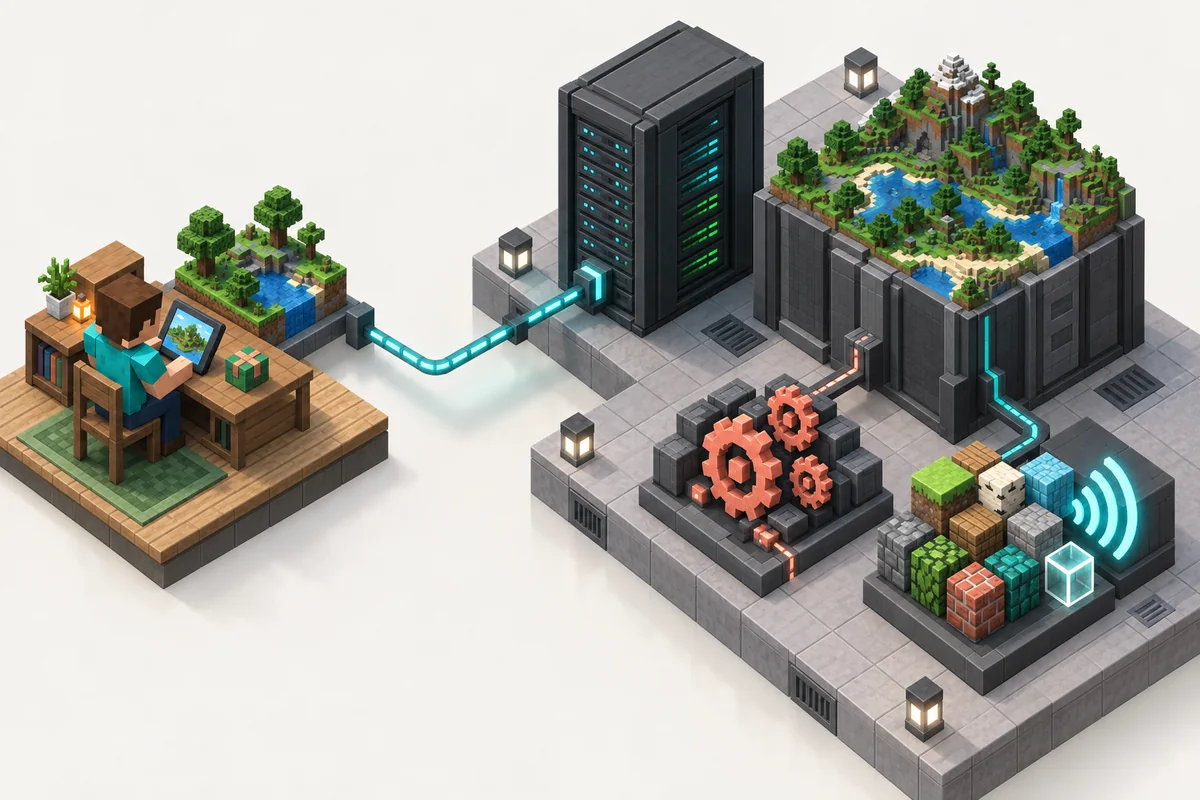
BDS file map
Which file or folder does each part of an add-on use?
The exact root path depends on your installation. These names describe the standard BDS folder roles; verify them against your server package or host documentation.

Player sync and pack stacks
A server pack and a player's local add-on are not always the same thing
For a world-managed server resource pack, the server can offer the pack to joining clients. The texturepack-required setting controls whether a player must accept the resource-pack download to join. It does not install the behavior pack as a local add-on, fix an incompatible pack, or promise identical rendering across every platform. Test the exact client and server versions you plan to use.
Behavior packs generally run as part of the server's world configuration, while resource packs provide presentation assets to clients. Some add-ons include both. Register each part in the matching world list, and do not assume that seeing a texture proves the behavior pack loaded or that seeing an entity proves every resource asset arrived.
Multiple add-ons can depend on one another. Install the full dependency set, check for duplicate header UUIDs, and keep each world-list version aligned with the installed pack. If the creator documents a pack order or a required experiment, follow the instructions for that exact release. Add one pack at a time so a failure has a small search area.
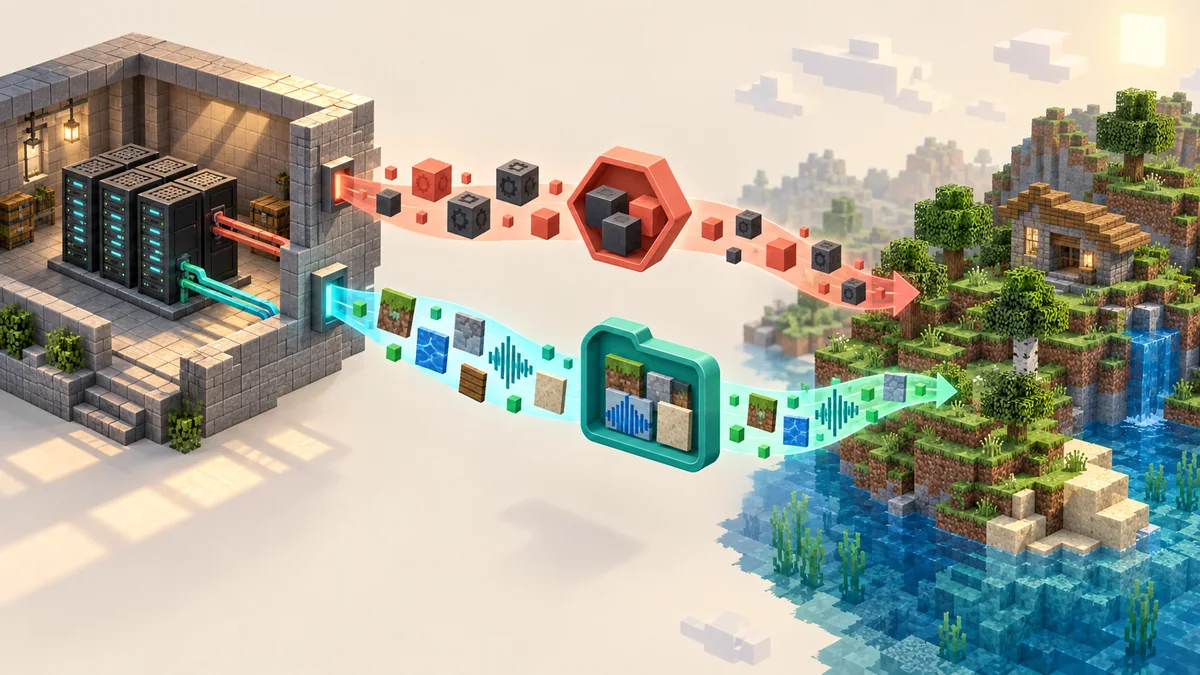
The arrows in the illustration show the conceptual boundary: the operator installs and enables packs on the server, then clients connect and may receive resource assets. The image is explanatory artwork, not a capture of Minecraft, a control panel, or a verified protocol trace.
Troubleshooting
Why a Bedrock server add-on may appear installed but do nothing
Use the failure signal to narrow the check. Change one item at a time and keep the backup until the corrected world has loaded successfully.
The wrong world is loading
Compare level-name in server.properties with the folder whose world pack lists you edited. A valid pack in another save is not active in the current world.
The manifest is nested or still compressed
Open the target pack folder and confirm manifest.json is directly inside it. Recheck the path if the download extracted an outer wrapper directory.
The UUID or version does not match
Use the pack header UUID and header version from manifest.json. Do not substitute the folder name, module UUID, or a version copied from an older download.
The pack type is in the wrong place
Move behavior content to behavior_packs and resource content to resource_packs, then register each in its matching world JSON list. A client import does not activate a server pack.
A dependency or experiment is missing
Review the exact release notes and manifest dependencies. Install the required pack versions together, and check the world's experiment settings when the add-on explicitly requires them.
Clients do not see the expected assets
Check the resource pack list, server prompt policy, client acceptance, and compatible game version. Clear only the affected client cache after recording the current setup; do not delete server worlds as a first fix.
Related guides
Continue with the page that matches your setup
These guides cover adjacent tasks without mixing local-world imports with dedicated-server configuration.
Import a Bedrock add-on into a personal world
Use the client-side .mcaddon import flow for your own device or local world.
Read personal import guideBedrock resource-pack troubleshooting
Check resource-pack file types, import behavior, and world activation on a Bedrock client.
Open resource-pack guideBedrock source and version notes
Review the current Verity Bedrock source page and its package-specific compatibility notes.
Review Bedrock sourceMinecraft version snapshot
Compare the recorded game and Verity package versions before testing a shared world.
Check version notesReferences
Official documentation to check before changing a server
These first-party references explain the dedicated-server download, pack structure, and add-on concepts. They do not certify a third-party pack's compatibility.
Minecraft Bedrock Dedicated Server
Official server downloads and platform information. Check the release that matches your server environment.
Open Minecraft server pageMicrosoft Learn: behavior packs
Official creator documentation for behavior-pack structure and manifests.
Read behavior-pack docsMicrosoft Learn: resource packs
Official creator documentation for resource-pack files and layout.
Read resource-pack docsMinecraft Help: Bedrock add-ons FAQ
Official player-facing context for Bedrock add-ons and supported platform behavior.
Open official FAQFAQ
Minecraft Bedrock server add-ons FAQ
How do I add add-ons to a Minecraft Bedrock server?
For a self-hosted Bedrock Dedicated Server, stop and back up the world, extract the pack, copy its folder to behavior_packs or resource_packs, then add the manifest header UUID and version to the matching pack-list JSON file inside the active world. Restart and test on a copy before using the production save.
Can I install a .mcaddon by double-clicking it on the server?
That usually imports the package into a Bedrock client profile, not into a dedicated server world. Extract the pack folders and follow the BDS folder and world-list workflow. A hosting panel may have a different upload process, so check its documentation.
Do players need to install the same add-on separately?
Not always. A server world can offer resource packs to joining clients, and texturepack-required can require acceptance of that download. Behavior packs are configured with the world on the server. Client version, platform restrictions, pack design, and server settings still affect what works.
How do I add multiple add-ons to a Bedrock dedicated server?
Install each pack's extracted folder and register every pack in the correct world list using its own header UUID and version. Include declared dependencies, check for duplicate IDs, and add packs one at a time in a copied world so you can find conflicts and follow any documented order.
Can a Minecraft Bedrock server have mods?
Yes, a Bedrock Dedicated Server can use compatible Bedrock behavior and resource packs, often called add-ons. It does not load Java Edition .jar mods or Forge/Fabric mods. Check the pack's manifest and release notes against your server build; a pack that imports into a client is not automatically server-compatible.
Can I use these BDS steps on Minecraft Realms?
No. These file paths are for an operator-managed Bedrock Dedicated Server. Realms does not expose the same server filesystem; use the Realm owner's supported world and pack workflow instead. A managed host may also use a panel-specific process.
Why does the pack show in a folder but not affect the server?
The server may be loading a different world, the pack may be in the wrong directory, or the active world's JSON list may contain the wrong UUID or version. Check the server log and manifest, verify dependencies and compatibility, then restart with one change at a time.
Does the Verity Bedrock release listing prove server compatibility?
No. The Verity source snapshot checked on September 23, 2026 lists version 4.0.0 for V26.50, but a release listing is not a dedicated-server compatibility test. Check the pack manifest and source notes against your BDS build and test a backup world. The Bedrock download CTA uses the official CurseForge file page because no stable direct file URL was verified.