Java Edition mod guide
How to Install Mods in Minecraft Java: 7 Safe Steps
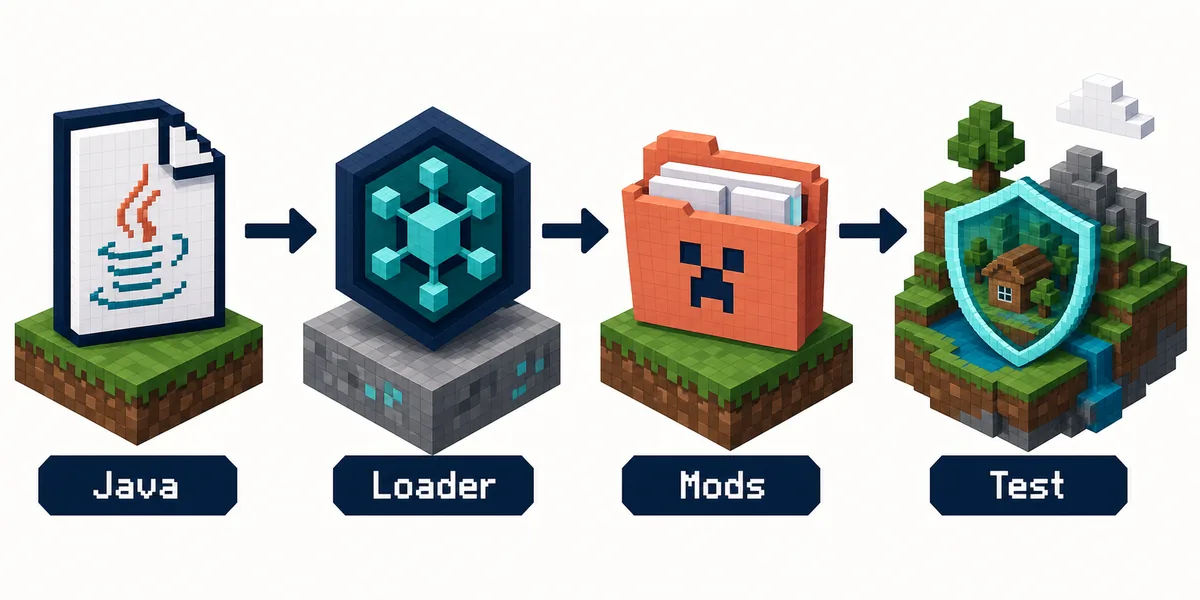
To install mods in Minecraft Java, match the mod to your Minecraft version and loader, install the loader in a separate profile, place the original .jar file in that profile's mods folder, and test before opening a main world.
This guide explains the workflow for Fabric, Forge and similar Java profiles. It does not turn a Bedrock .mcaddon into a Java mod, and it does not recommend random mirrors or launchers that hide the source file.
Quick answer
The short version: loader first, mod file second
The safest answer to how to install mods in Minecraft Java is to treat every mod as part of a matching profile. A mod page should name the Minecraft version and loader it supports. Your profile must use that same combination before you download or copy anything.
Fabric and Forge are not interchangeable folders or launch modes. Some projects also target NeoForge, and a mod built for one loader may not load in another even when both use .jar files. Start with a clean profile, keep the downloaded filename unchanged, and add one mod at a time.
The current Minecraft Java release can move independently from a project release. For example, the official version manifest checked on August 4, 2026 listed 26.2 as the latest release, while the existing Verity JE source listed a Forge 1.20.1 file. Those are different facts: always match the mod page to the profile you are actually running.
Java only
A Java mod normally arrives as a .jar file and belongs to a Java modded profile, not a Bedrock import screen.
Loader matters
Choose Fabric, Forge or another named loader from the mod page, then install that loader for the same Minecraft version.
Test before combining
A clean profile and copied world make it possible to tell a version mismatch from a dependency or mod conflict.
Installation workflow
How to install Minecraft Java mods step by step
Follow these seven checks in order. They are deliberately source-first so a large download or a copied tutorial does not decide your compatibility for you.
1. Confirm that you use Java Edition
Open the official launcher or the launcher profile you normally use. Bedrock, Minecraft PE and console editions use different content systems. If the file is .mcaddon or .mcpack, it is not the Java .jar workflow described here.
2. Read the mod page, not only the title
Record the exact Minecraft version, loader, dependencies and release file name. A page that only says 'works with Minecraft' does not provide enough information to choose a profile safely.
3. Install the matching loader
Use the official Fabric installer or the official Forge file page for the version you selected. Create a separate installation or profile when possible, and launch it once before adding any third-party mod.
4. Download from a maintained source
Prefer the project's Modrinth or CurseForge listing, the author's documented page, or another source that exposes the project identity and version history. Do not use a mirror just because it promises a faster button or a modified installer.
5. Put the original .jar in the right mods folder
Open the mods folder belonging to the matching profile, not a random global folder from another installation. Keep the file extension and filename intact. If the loader creates the folder after its first launch, close the game before copying the file.
6. Check dependencies and launch a test profile
Many mods require a library, API or configuration file. Add the required dependency versions, launch with only the target mod set, and read the first error message instead of downloading another copy.
7. Test a copied world before adding your normal pack
Open a new or copied world, check the mod's expected feature, then exit cleanly. Add other mods one at a time so the first failure identifies the likely conflict rather than leaving an unreadable pile of changes.
Source and compatibility check
Five details to verify before you download a Java mod
The first useful distinction is between a project page and a file page. A project page explains what the mod does; a file page tells you which Minecraft version, loader and dependencies apply to the specific build. Use the file-specific information for the profile you are installing today.
Check the loader name carefully. Fabric mods, Forge mods and NeoForge mods can all be Java .jar files, but the loader is part of the compatibility contract. A mod page may list several files for different loaders, so select the row that matches your profile instead of picking the newest-looking filename.
Next, check dependencies. A library such as Fabric API or a loader-specific support mod may be required even when the main project page looks complete. Missing dependencies usually produce a readable crash report or launcher message. Record the dependency name and game version before searching for it separately.
Also check whether the download is actually a mod. Shader packs, resource packs, datapacks, modpacks and Java mods can all appear in the same search results, but they use different folders and loading rules. A shader .zip should not be placed in the mods folder, and a Bedrock add-on should not be renamed to look like a Java file.
Finally, preserve the source context. Save the project URL, file name, loader, Minecraft version and review date in a note. If the source page updates later, you can see exactly what changed instead of trusting an old tutorial that still points to a stale build.
Compatibility matrix
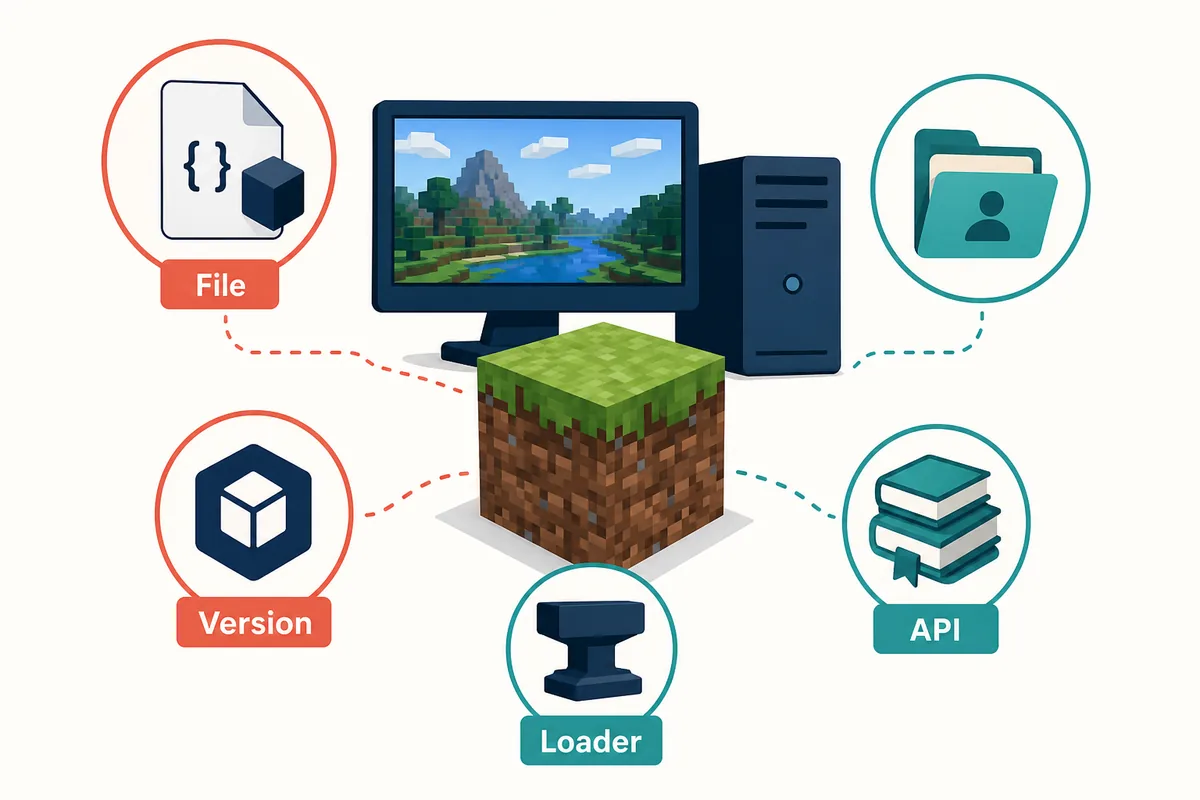
What must match before a Java mod can load?
Use this table as a quick decision tool. A green-looking download button cannot replace any of these compatibility checks.
Profile and troubleshooting
Find the mods folder without risking your main world
The mods folder belongs to a Java installation or profile. Its exact location depends on the launcher and operating system, and custom launchers may use a separate game directory. Open the profile's settings or instance folder rather than assuming that the first .minecraft directory is the one currently running.
If you use the standard launcher on Windows, the conventional game directory is usually inside the user's AppData folder. That is a starting point, not a guarantee: profiles and third-party launchers may redirect the directory. The reliable test is to launch the chosen profile once, note which directory receives its logs or saves, then place the mod in that profile's mods folder.
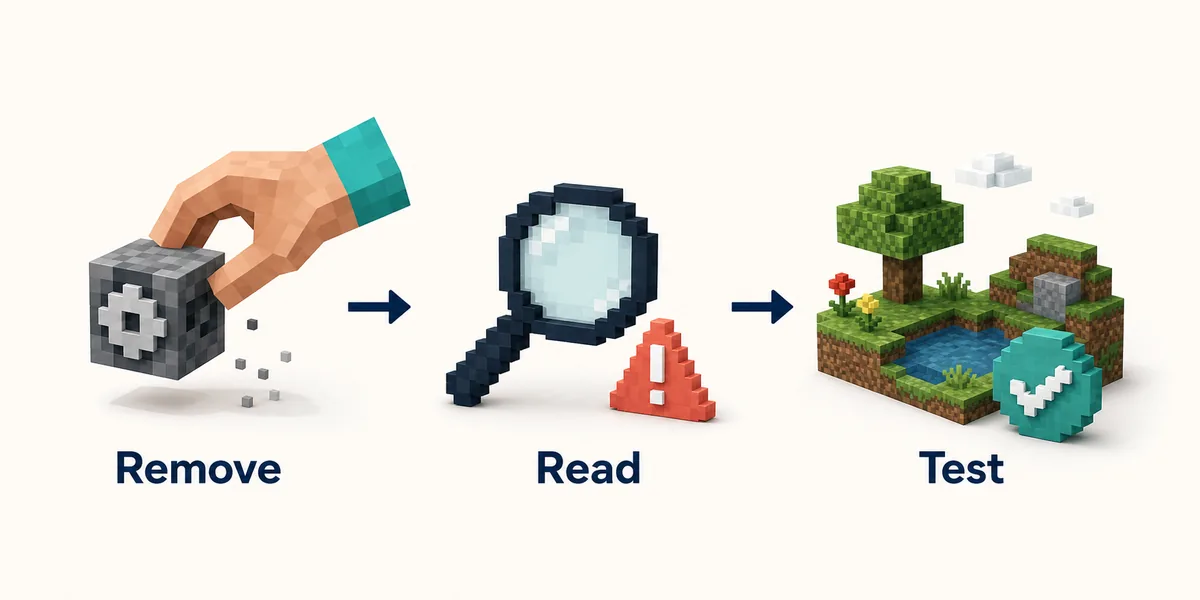
Add the target mod and only its required dependency to a clean profile. If the game reaches the title screen, create a copied world and check one expected feature. If it crashes, remove the newest file and launch again. This one-change loop gives you evidence about the failing file instead of hiding the error under five unrelated mods.
When a mod does not appear, check the loader profile first, then the folder path, filename extension, game version, dependency list and log message. Do not repeatedly download the same file from mirrors. If a source page names a different loader or version, replace the profile or choose a compatible file rather than forcing the install.
Once the clean test works, add your regular mods gradually. Keep a short inventory of project URLs, file names, loader, Minecraft version and date. That record is especially useful when a later update changes a dependency or a world stops loading after several mods have been added.
Common mistakes
Why a Java mod does not show up or crashes
Most failed installs are compatibility or file-management problems, not proof that you need a different mirror.
Wrong Minecraft version
The launcher may start normally while the mod is rejected because the file targets another game version. Match the file page and profile exactly.
Wrong loader
A Fabric file will not become a Forge mod because both use .jar. Install the loader named by the project and use its profile.
Confusing a pack with a mod
Shaders, resource packs and datapacks use different folders. Read the project type before moving a file.
Missing dependency
A library or API can be required even when the main mod downloaded correctly. Follow the source page's dependency list.
Several new files at once
Adding a whole modpack to a working profile makes the first failure hard to identify. Start with one mod and one copied world.
Treating a mirror as an authority
Rehosted files can be stale, renamed or bundled with unwanted installers. Prefer a maintained project or file page with visible version context.
Related Verity guides
Keep Java installation separate from other editions
These pages cover the project-specific download context and the edition boundaries that this Java mods guide assumes.
Verity Minecraft Java Download
Check the current Verity JE source, Forge profile and Java file context before installing that specific mod.
Open Java source notesVerity Minecraft Versions
Compare platform-specific version notes without treating a Java file as a Bedrock or PE release.
Review versionsHow to Install Verity Minecraft
Use the broader edition map when your search mixes Java, Bedrock and mobile instructions.
Open install overviewMinecraft Java vs Bedrock
Confirm which edition and content ecosystem your device and multiplayer group actually use.
Compare editionsMinecraft Modpacks Guide
Switch here when you want a coordinated Java pack instead of installing one mod and its dependencies at a time.
Choose a modpackOfficial references
Primary sources used for this installation guide
These links explain the loader or launcher paths. Project-specific compatibility still belongs to each mod's maintained file page.
Fabric: Installing Mods
Fabric's player documentation for installing a mod in a matching Java profile.
Read Fabric docsForge Files
The official Forge file index for selecting a game-version-specific installer or installer page.
Open Forge filesModrinth App
A maintained first-party route for managing Modrinth projects and profiles without hiding project metadata.
Open Modrinth AppMinecraft Download
Official Minecraft download and launcher entry point for confirming the edition you are running.
Check MinecraftFAQ
How to Install Mods in Minecraft Java FAQ
How do I install mods in Minecraft Java without mixing versions?
Read the specific file page, record its Minecraft version and loader, install that loader in a separate profile, and place the original .jar in the profile's mods folder. Test with only the required dependency before adding other mods.
Is Fabric or Forge better for Minecraft Java mods?
Neither is universally better. Use the loader named by the mod or mod collection you want. Fabric, Forge and NeoForge have different compatibility ecosystems, so choosing by popularity alone can produce a profile the project does not support.
Where is the Minecraft Java mods folder?
It is inside the game directory used by your active Java profile. The conventional Windows directory is often under AppData, but custom launchers can use another instance directory. Check the profile settings and launch it once before copying a file.
Why does my Minecraft Java mod not show up?
Check the active loader profile, folder path, .jar extension, Minecraft version and dependency list. If the game crashes, remove the newest file and read the first launcher or log error before downloading another copy.
Can I install a Java mod on Minecraft Bedrock or PE?
No. Java mods and Bedrock add-ons use different systems and file formats. Use the Bedrock or PE guidance on this site instead of renaming a .jar file.
Can I use a third-party launcher such as TLauncher?
Third-party launchers can use different folders, profiles and account or source policies. Do not make one launcher the main solution: follow its documented instance path, use a legitimate Minecraft setup, and verify the mod through the project's maintained source page.