Minecraft modpacks guide
Minecraft Modpacks: How to Choose, Install, and Troubleshoot (2026)
The best Minecraft modpack is not simply the one with the longest feature list. Match the pack to your Minecraft version, loader, launcher, available RAM, and the way you want to play before importing anything.
This guide explains what a modpack contains, how to compare Fabric, Forge, and NeoForge paths, how to install a pack in a separate Java profile, and how to diagnose missing dependencies, crashes, slow startup, and multiplayer mismatches.
Quick answer
Choose the profile before you choose the download
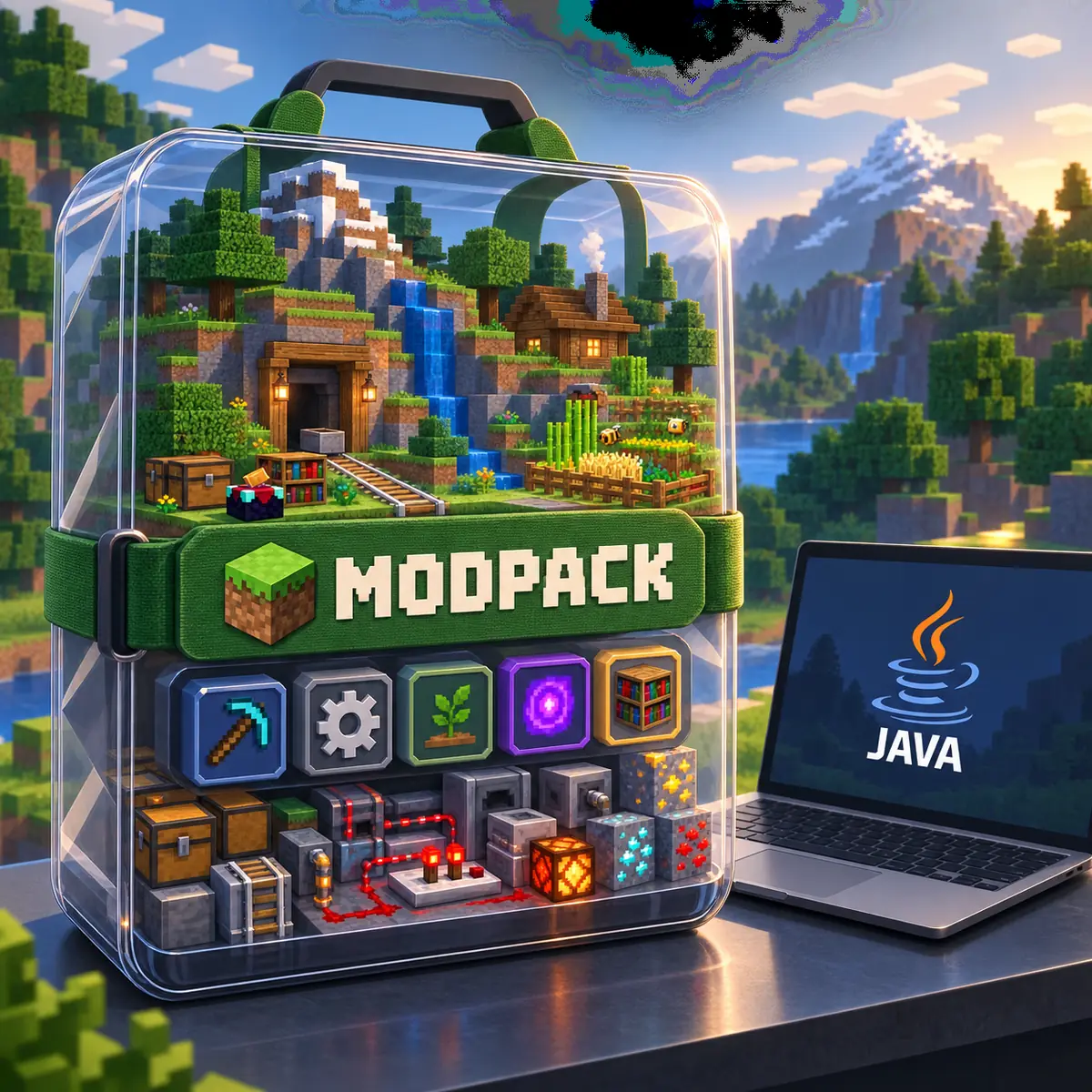
Minecraft modpacks bundle multiple Java mods, configuration files, libraries, and sometimes resource packs or scripts into a repeatable setup. That bundle is useful because the author has selected a group that should work together, but it also makes compatibility more important than it is for one standalone mod. A pack built for one Minecraft release and loader is not automatically suitable for another.
Start by recording the Minecraft version, loader, launcher or instance format, required RAM, and multiplayer instructions shown on the maintained project page. Then choose a separate profile or instance, import the pack from a source that exposes project and file context, launch it once, and test a new or copied world. Keep your normal save and working profile unchanged until the pack proves stable.
The word modpack usually describes Java Edition content. Bedrock add-ons, resource packs, shaders, and Java modpacks can appear beside one another in search results, but they are different content systems. A .mcaddon or .mcpack does not become a Java modpack when renamed, and a Java pack should not be copied into a Bedrock import screen.
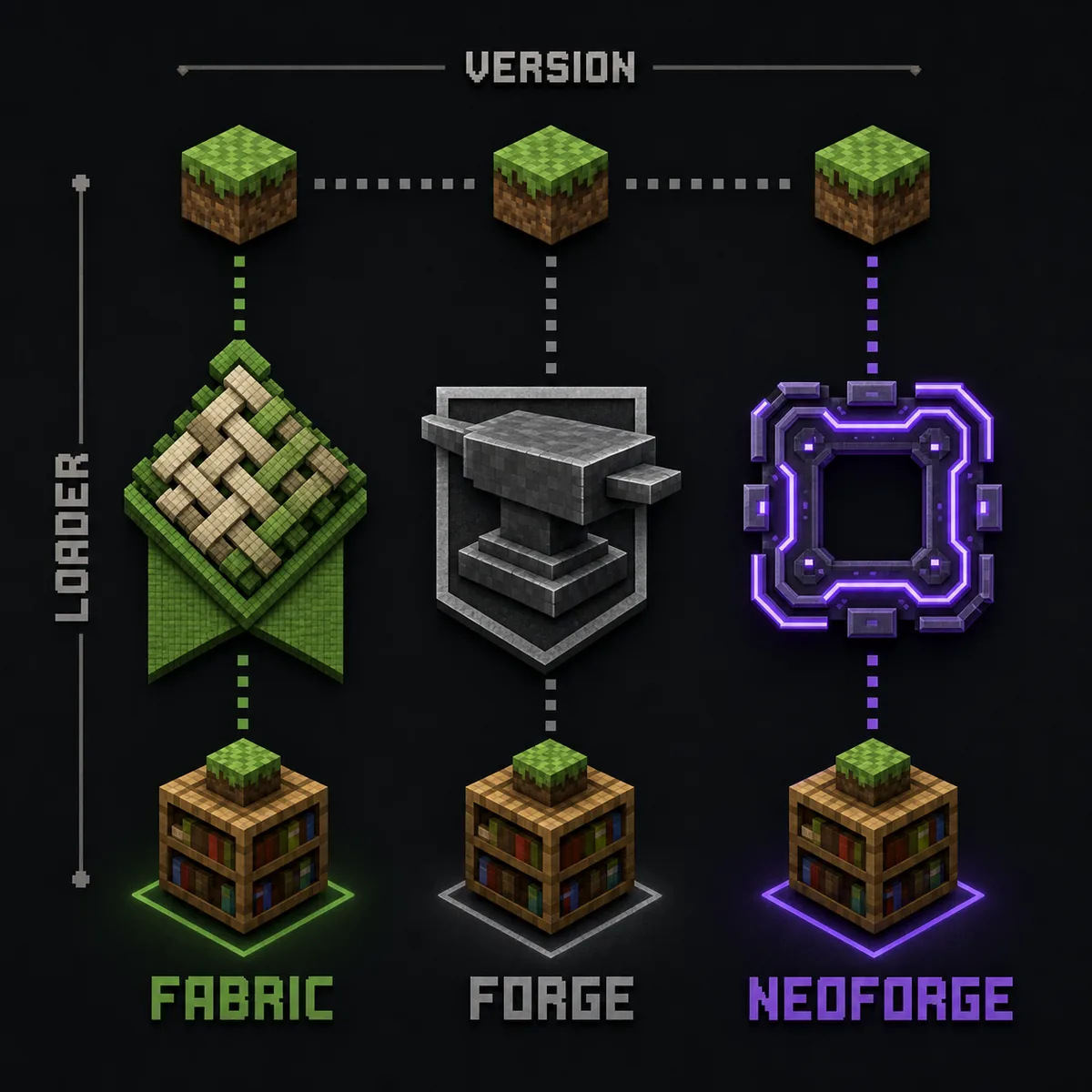
Version is the first filter
A pack may list several releases. Pick the file whose Minecraft version matches the profile you will actually launch, then keep that version in your notes.
Loader is part of the pack
Fabric, Forge, and NeoForge are different environments. A pack made for one loader is not interchangeable with a pack made for another.
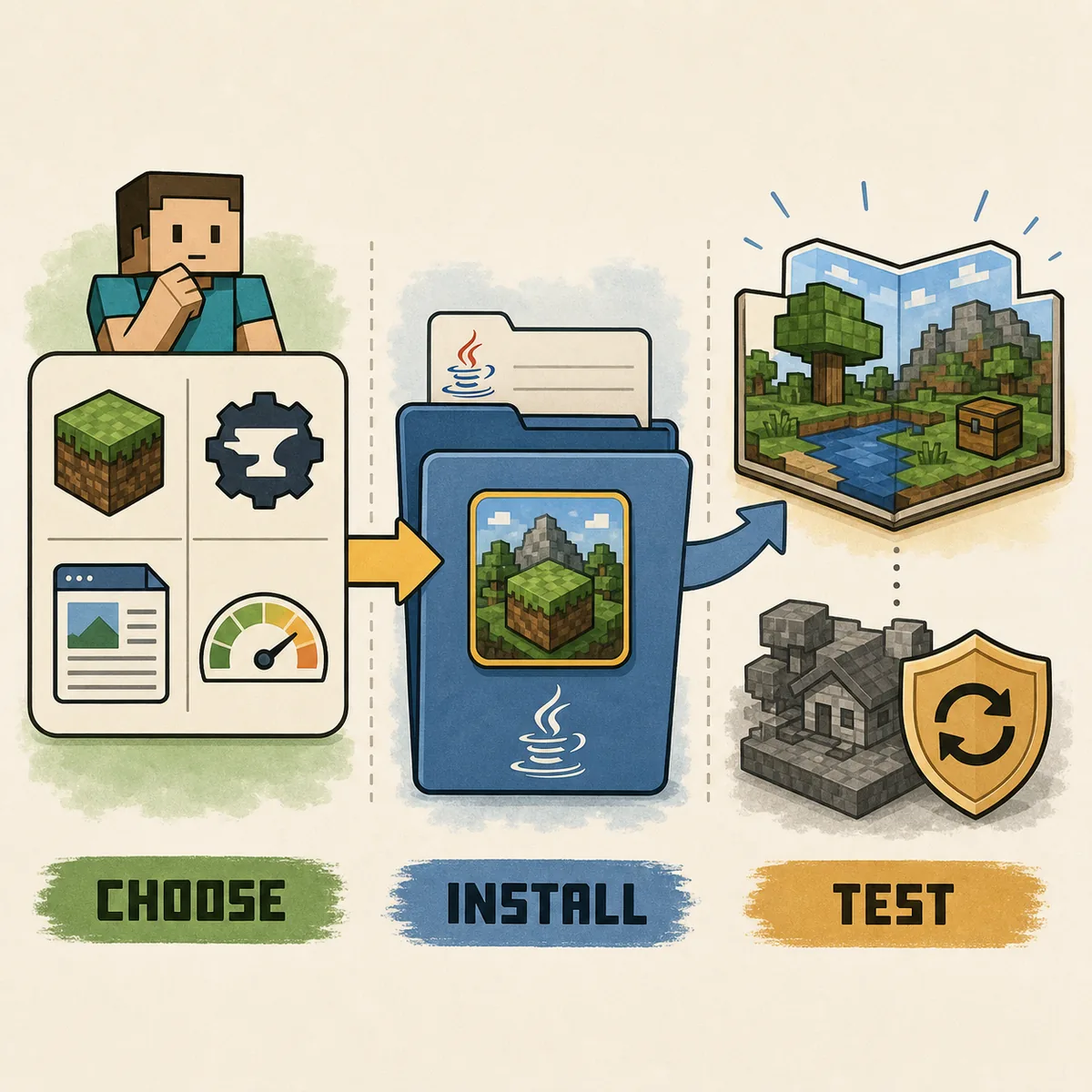
Test outside your main save
A separate instance and copied world make it easier to remove a broken pack, identify a dependency, and protect a long-running survival world.
Selection and installation workflow
How to install Minecraft modpacks in 7 deliberate steps
Use this order whether you work through a launcher, a Modrinth or CurseForge instance, or a documented manual import. It prevents a mismatched file from deciding your profile for you.
1. Confirm Java Edition
Modpacks normally target Minecraft Java Edition. If your file is .mcaddon or .mcpack, stop and read the Bedrock or add-on instructions instead of forcing it into a Java folder.
2. Record the exact version
Write down the Minecraft version named by the pack file, not only the version shown in a search snippet. A release such as 26.3 and an older 1.20.1 profile are separate compatibility targets.
3. Match the loader
Check whether the pack uses Fabric, Forge, NeoForge, or a launcher-managed environment. Do not install a different loader just because it is already present in another profile.
4. Check memory and dependencies
Read the minimum and recommended RAM notes, required Java version, optional resource packs, and known dependencies. More allocated RAM is not always faster if the computer has too little memory left for the operating system.
5. Import into a new instance
Use the documented import action or create a clean profile with the pack files. Keep the original archive and project URL so you can compare the file if an update changes the setup.
6. Launch once before adding extras
Let the instance create its folders, then start it with the pack alone. If it fails at this stage, the version, loader, Java runtime, or pack file is a more likely cause than a later add-on.
7. Test a copied world and multiplayer
Check one expected feature in a new or copied world. For multiplayer, everyone should use the same pack release, loader, Minecraft version, and server-side requirements before joining a valuable world.
Loader and compatibility check
Compare Fabric, Forge, and NeoForge before importing
The loader is not a cosmetic label. It determines which hooks, libraries, and profile environment the pack expects. Fabric often appears in lightweight or fast-moving mod collections, Forge remains common in large content ecosystems, and NeoForge has its own project and version boundary. The correct choice is the one named by the pack release, not the one that sounds most familiar.
Check the file page rather than trusting a pack title. Look for the exact Minecraft version, loader, Java runtime, required dependencies, optional client or server components, and update notes. A project page can describe the idea while a specific file page defines the release that is actually installable. Keep both links in a note when you are preparing a server or a shared instance.
Use a maintained project source such as a Modrinth or CurseForge listing, the author's documented release page, or a launcher that preserves the project metadata. A mirror may rename an archive, remove a changelog, bundle an unwanted installer, or leave an old file online. A download button by itself is not proof that the pack matches your game.
The official Minecraft download page and the loader documentation are useful for confirming the base launcher and installation path. They do not certify that every community modpack supports the current release. Compatibility still belongs to the pack's own file notes and to a test instance.
Decision matrix
What to compare when choosing Minecraft modpacks
Use the row that matches your actual constraint. A longer feature list is not automatically a better choice for a small computer, a server, or a first installation.
Test profile and troubleshooting
Install a modpack without putting your main world at risk
Treat the first launch as a compatibility test, not as the beginning of a permanent world. Let the new instance create its own logs, saves, and configuration files. If a launcher uses a separate instance directory, do not assume that the standard .minecraft folder is the one your pack will read. The profile settings or instance path is the reliable source of truth.
Start with the pack alone. Do not add shaders, extra resource packs, performance mods, or a second content collection until the base pack reaches the title screen and opens a copied or temporary world. This one-change rule makes the first error useful. If five files change at once, the crash report cannot tell you which change caused it.
For RAM problems, check both the pack's guidance and the computer's total memory. Too little allocation can cause startup crashes or repeated garbage collection, while excessive allocation can starve the operating system and create its own stutter. Close unrelated applications, use the recommended Java runtime, and change one setting at a time.
After the clean test works, write down the pack release, Minecraft version, loader, Java version, launcher or instance path, and any server requirement. Keep a backup of the world before a major update. If a future update breaks the pack, you can return to the known-good instance instead of trying to reconstruct it from memory.
Common failure points
Why a Minecraft modpack crashes, lags, or will not join
Most failures can be narrowed down by checking one boundary at a time. Re-downloading the same archive from another mirror usually removes useful evidence instead of fixing the cause.
Wrong version
The launcher may open while the pack fails because its file targets another Minecraft release. Match the file page to the active profile.
Wrong loader
Fabric, Forge, and NeoForge are not interchangeable. Select the loader named by the pack and do not mix profiles.
Too much or too little RAM
Use the pack guidance, leave memory for the operating system, and change allocation gradually rather than assigning every available gigabyte.
Missing dependency
A library, API, Java runtime, or server-side component may be required. Read the first error and the release notes before searching for another download.
Extra files added too soon
Shaders, resource packs, and performance mods can change the failure. Reproduce the clean pack first, then add one extra at a time.
Different multiplayer releases
Players and servers need compatible versions, loader paths, and required files. Agree on the exact pack file before opening a long-term shared world.
Related Verity guides
Keep modpacks separate from other Minecraft content
Use the page that matches the file or installation task you actually have. Separating Java modpacks, single Java mods, Bedrock add-ons, and resource packs prevents the most common folder mistakes.
How to Install Minecraft Java Mods
Follow the one-mod workflow for Fabric or Forge files, mods folders, dependencies, and loader errors.
Read Java mod stepsMinecraft Java vs Bedrock
Confirm the edition before treating a file as a Java modpack or a Bedrock add-on.
Compare editionsMinecraft Resource Packs
Use the separate resource-pack workflow instead of placing a texture pack in a Java mods folder.
Check pack formatsVerity Minecraft Versions
Review the site's version notes and keep a modpack file's own compatibility details separate from download facts.
Review versionsMinecraft Bedrock Add-ons
Switch here when your file is .mcaddon or .mcpack and the target is Bedrock world activation.
Read Bedrock stepsPrimary references
Official and maintained sources for modpack setup
These links help confirm the base launcher, loader installation, and project-discovery paths. A source page does not replace a pack-specific version and dependency check.
Minecraft Download
Official Minecraft launcher and edition entry point for confirming the Java environment you are using.
Open MinecraftFabric Installation Wiki
Fabric's installation structure distinguishes the Mojang launcher, alternative launchers, and server paths.
Read Fabric guidanceModrinth Modpacks
A maintained discovery page with filters for category, environment, game version, loader, and license.
Browse ModrinthCurseForge Modpacks
A major project and launcher ecosystem. Check the specific file page and its release notes before importing.
Open CurseForgeFAQ
Minecraft Modpacks FAQ
What are Minecraft modpacks?
A Minecraft modpack is a coordinated collection of Java mods, configuration files, libraries, and sometimes resource packs or scripts. It is installed as a matching profile or instance, not as one ordinary mod file.
How do I install Minecraft modpacks without mixing versions?
Choose the pack file for your Minecraft version and loader, import it into a new Java instance, launch it once, and test a copied world before adding extra files or opening your main save.
Can I use a modpack without the Modrinth App?
Often yes, if the pack provides a documented archive or another supported launcher path. Keep the project and file pages, follow the stated loader and instance instructions, and do not assume that an archive can be dropped into any folder.
Why does my Minecraft modpack crash on startup?
Check the exact Minecraft version, loader, Java runtime, memory allocation, missing dependencies, and the first error in the log. Remove extra files and reproduce the clean pack before trying another mirror.
How much RAM do Minecraft modpacks need?
The right amount depends on the pack, game version, Java runtime, and computer. Start with the pack's recommendation, leave memory for the operating system, and increase allocation gradually only when the evidence points to memory pressure.
Can I use a Java modpack on Minecraft Bedrock or PE?
No. Java modpacks use a Java loader and instance structure, while Bedrock and PE-style setups use add-ons, resource packs, and world activation flows. Use a Bedrock-specific release and instructions instead.