Resource pack guide
Minecraft Resource Packs: Java and Bedrock Installation Guide
Minecraft resource packs are easiest to use when you identify the edition before opening the download. This guide maps the Java and Bedrock paths, explains the common file formats, and gives you a low-risk way to test a pack.
Use the broad workflow here first, then open the edition-specific guide when you need deeper troubleshooting.
Quick answer
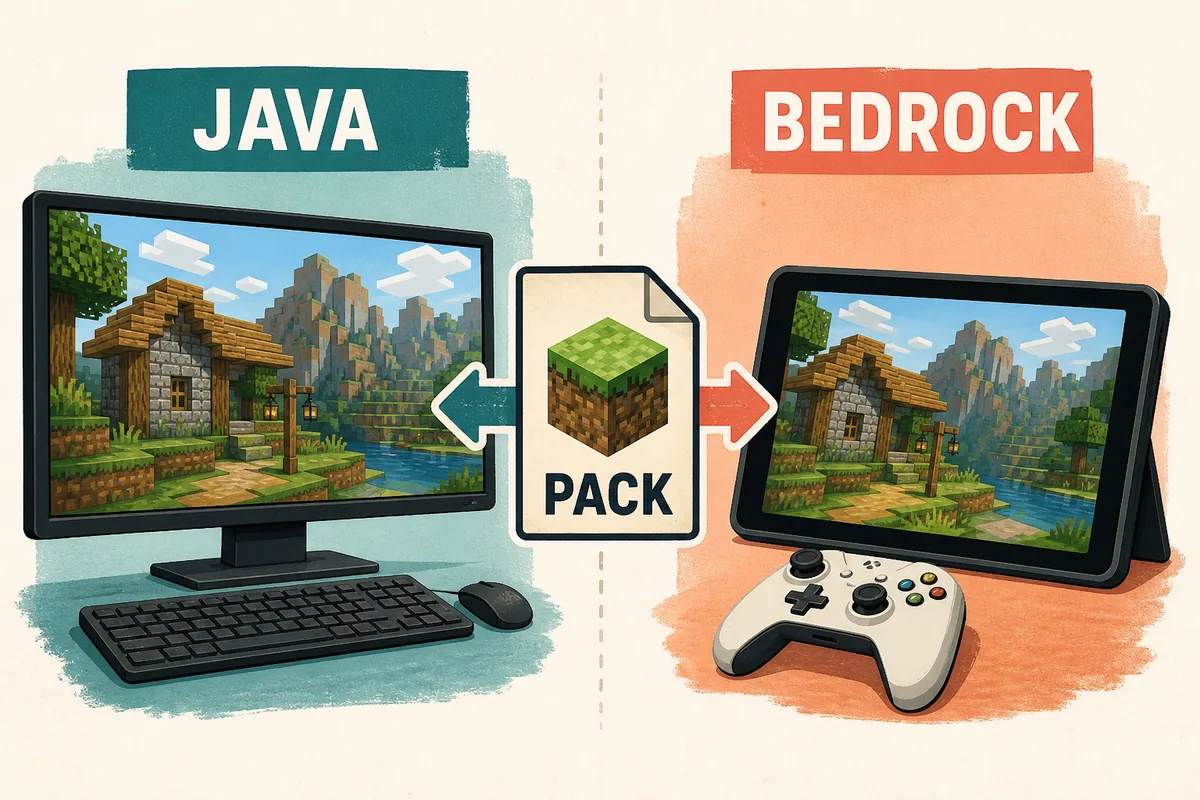
Choose the edition before the file
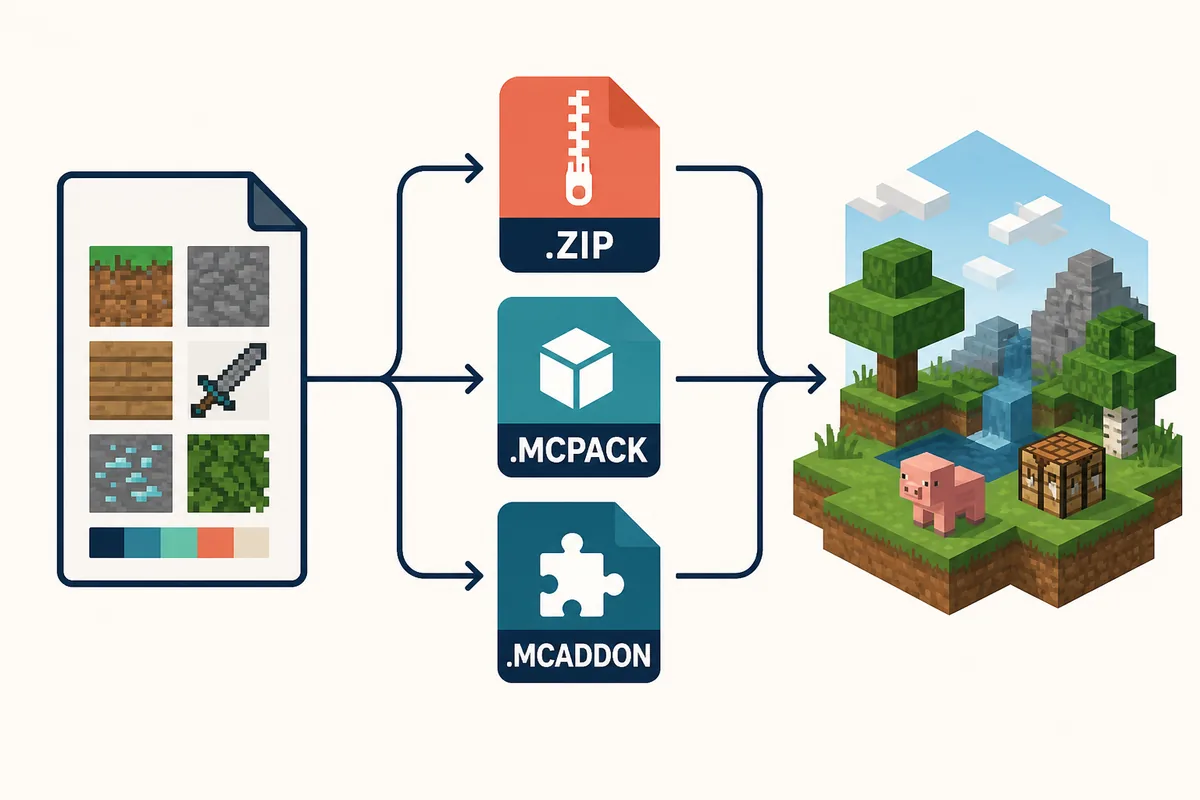
A Minecraft resource pack changes visual or audio assets such as textures, sounds, fonts, and interface art. It does not automatically add new gameplay systems. Java Edition commonly uses a compatible resource-pack ZIP, while Bedrock commonly imports a pack file such as .mcpack. Some Bedrock downloads use .mcaddon because they bundle resource and behavior components.
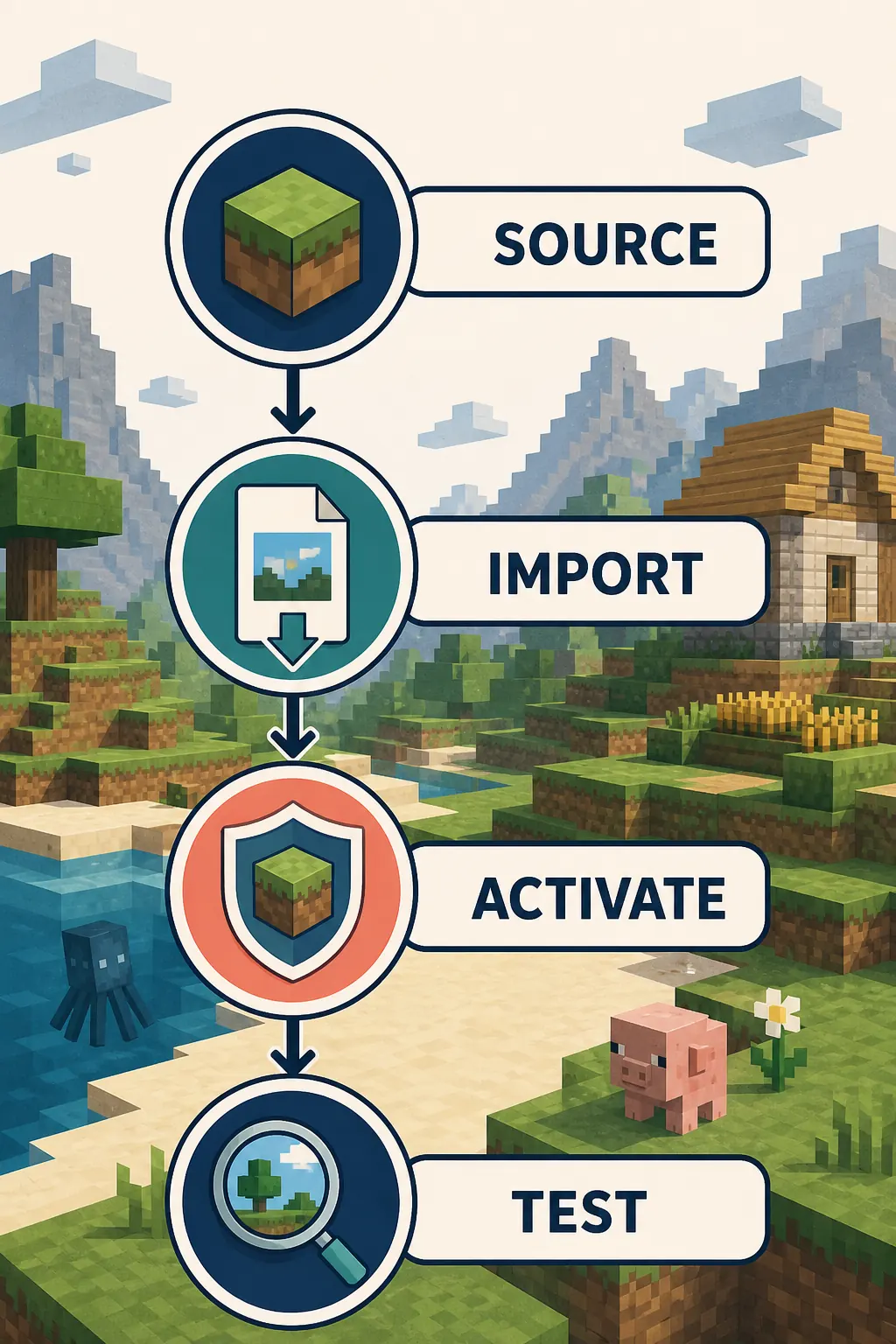
The safest workflow is source first, edition second, version third. Check the maintained download page, confirm Java or Bedrock, match the Minecraft version when the creator provides one, and only then import or copy the file. A familiar filename is not proof that a pack is safe or compatible.
Java usually starts with a ZIP
In Java Edition, the resource-pack menu normally expects a compatible ZIP. Do not unzip it unless the source instructions specifically require a folder, and do not confuse a resource pack with a Java mod JAR.
Bedrock usually imports a pack
A Bedrock .mcpack can open Minecraft and import the pack. After import, you still need to activate it globally or in a world. An .mcaddon may include more than a visual resource pack.
The extension is only one check
Edition, version, source context, pack type, and activation location all matter. If one of them is wrong, the pack may not appear, may look incomplete, or may cause a world to load with missing assets.
Seven-step workflow
How to add resource packs to Minecraft safely
Follow these checks in order. They turn a vague download problem into a short compatibility decision and keep your main world out of the first test.
Identify Java or Bedrock
Start with the edition shown in your launcher, device, or world menu. Java and Bedrock are separate content ecosystems, so a Java ZIP is not a Bedrock import and a Bedrock package is not a Java resource-pack folder.
Read the source page
Prefer the creator, official project page, marketplace listing, or a maintained release page. Look for an update date, supported edition, supported Minecraft versions, file type, and any required dependency or experiment setting.
Match version and format
Compare the pack's stated Minecraft version with your installation. If the page lists several files, choose the one whose edition and format match. Treat a version label as evidence to check, not as a guarantee that the pack will work everywhere.
Import or copy using the right path
For Bedrock, opening a supported .mcpack or .mcaddon normally starts an import. For Java, place the compatible ZIP where the Java resource-pack menu can see it, or follow the source's documented folder path. Never rename a file just to force an import.
Activate the pack
Importing is not activation. Java uses the resource-pack selection screen; Bedrock can use global resources or a world-specific resource-pack slot. Put the pack in the active list, then check the order if more than one pack changes the same texture.
Test a copied world
Before loading your main survival world, create or copy a test world. Walk through an area with several block types, open a chest, listen for changed sounds, and check menus or fonts. This makes rollback simple if the pack is incomplete.
Troubleshoot one mismatch first
If the pack does not show up, check the extension, edition, version, import result, activation list, and load order one at a time. Remove the newest pack from the test world before changing unrelated settings or downloading another mirror.
Source and format check
Know what the download is before you open it
The words resource pack, texture pack, behavior pack, and add-on are often mixed together on download pages. For a visual-only change, you usually want a resource pack. A behavior pack or add-on may change entities, recipes, rules, or other game behavior, so its activation and compatibility risks are different.
The official Minecraft Help instructions are the best starting point for the platform workflow. Community pages can still be useful, but check that the creator identifies the edition, explains the file, and maintains version notes. Avoid a page that hides the download behind several redirects, changes the file type, or claims that every edition uses the same package.
Edition matrix
Java vs Bedrock resource-pack checks
Use this table to decide which instructions belong to your setup before you move a file or open a world.
Activation and testing
Importing is not the same as using the pack
A successful import only proves that Minecraft recognized the file. You still need to choose the pack in the correct resource menu. In Java, open the resource-pack settings, move the pack into the active list, apply the change, and watch for the reload. In Bedrock, decide whether the pack should apply globally or only to one world, then confirm it appears in the active resources for that world.
A copied test world is a practical safety boundary. It lets you inspect missing textures, unexpected sounds, or an incompatible load order without changing the world you care about. If two packs modify the same asset, test them one at a time and put the intended priority first. Only keep the pack in your main setup after the test is clean.
Common mistakes
Why a Minecraft resource pack does not appear
Most failures are compatibility or activation problems rather than proof that you need a different download mirror.
Java and Bedrock were mixed
A Java ZIP and a Bedrock .mcpack may describe similar visual changes, but they are not interchangeable packages. Re-check the edition before changing the file extension.
The pack was imported but not active
Bedrock can finish an import while leaving the resource pack inactive. Java can show a pack in the list while it remains on the available side. Check the active list and world settings.
The version is outside the supported range
A pack created for a different version may load partially or show missing textures. Use the source's compatibility notes and test before moving it into a main world.
A behavior pack was treated as visual-only
An .mcaddon or behavior component may need additional activation, experiments, or a matching companion resource pack. Read the source description instead of assuming it is only a texture change.
Too many packs changed at once
Load order can hide the effect of a pack. Disable other packs in the copied world, verify one change, and then add the remaining packs back one at a time.
Related guides
Open the page that matches your next question
This overview keeps the edition boundary clear. Use these pages for the deeper workflow or a different content type.
Minecraft Bedrock resource pack guide
Follow the Bedrock download-source, .mcpack import, world activation, and troubleshooting path.
Open Bedrock guideMinecraft Java vs Bedrock comparison
Compare device support, multiplayer, mods, add-ons, and the content ecosystem before choosing a file.
Compare editionsJava setup and profile checks
Use the Java loader and profile checklist when a resource pack is part of a modded setup.
Open Java setupMinecraft version compatibility notes
Check the site's current edition and version context before following an older pack instruction.
Check versionsOfficial references
Sources checked for this guide
These official help pages support the platform workflow. A specific creator's release page remains the authority for that pack's files and compatibility.
Minecraft Help: install resource packs
Official instructions for the resource-pack installation workflow.
Open official helpMinecraft Help: install behavior packs
Official reference for the behavior-pack boundary that can appear in bundled add-ons.
Open behavior-pack helpFAQ
Minecraft resource pack questions
How do I add resource packs to Minecraft?
First identify Java or Bedrock, then download a pack from a maintained source in the format that matches the edition. Java normally adds a compatible ZIP through the Resource Packs screen. Bedrock commonly imports an .mcpack or .mcaddon, after which you activate it globally or in the target world.
Can I use a Java resource-pack ZIP in Bedrock?
Not automatically. A Java resource-pack ZIP is built for Java's content structure and menu, while Bedrock expects its own package and manifest conventions. Look for a Bedrock release from the creator instead of renaming the Java file.
Are Minecraft texture packs and resource packs the same thing?
Players often use texture pack as an older or informal name for a resource pack. Resource packs can include textures plus sounds, fonts, or interface assets, so read the source description when the download promises more than a visual change.
Where should I download resource packs for Minecraft?
Prefer the creator's official page, an official marketplace listing, or a maintained release page that explains the edition, version, file type, and update context. Avoid invented mirrors or pages that hide what file will be downloaded.
Why will my Minecraft resource pack not show up?
Check the edition, file type, supported version, import result, active resource list, and load order one at a time. In Bedrock, an imported pack still needs to be activated. In Java, a ZIP can be visible but not active or can be filtered by a version mismatch.
Do resource packs change Minecraft gameplay?
A visual resource pack normally changes presentation rather than gameplay rules. If the download includes a behavior pack or add-on, it may change entities, recipes, or other behavior, so follow its separate activation and compatibility instructions.