Bedrock maps guide
Minecraft Bedrock Maps: How to Download, Import, and Play Them (2026)
Minecraft Bedrock maps are usually imported as a .mcworld file, but the package is only the beginning. You still need to confirm that the map is meant for Bedrock, compare its game-version notes with your installation, and test it in a copied or temporary world before trusting it with a main save.
This guide explains the difference between a world map, a resource pack, and an add-on; shows the safest import order for Windows, mobile, and other Bedrock-style devices; and gives you a short troubleshooting path when an imported map does not appear or loads incorrectly.
Quick answer
Use a Bedrock World File, Then Test a Copy
For most Minecraft Bedrock maps, the cleanest path is: choose a maintained source, download the package without renaming it, open the .mcworld file with Minecraft, wait for the import to finish, and look for the new world in the Play screen. If the download is a zip archive or a plain world folder instead, follow the source instructions for that package; do not assume that every file with the word map in its name is ready to open directly.
The edition check matters because Java maps and Bedrock maps do not share a universal world-file workflow. A map can have the same theme, title, or screenshot in both editions and still use different folders, commands, pack behavior, or version assumptions. A Bedrock map also differs from a .mcpack resource pack and a .mcaddon add-on: the map is a world you load, while packs and add-ons change content inside a world.
The safest practical habit is to import into a copied or temporary world workflow first. Confirm the spawn area, structure, terrain, pack dependencies, and basic playability before opening the download in a long-term survival save or a shared Realm. A dramatic preview image is useful for discovery, but it does not prove that the file matches your edition or current Bedrock release.
Expected world signal
A .mcworld file is a common Bedrock world package. A source that gives edition, version, file type, and creator context is easier to verify than a bare mirror button.
Do not mix package types
A .mcpack is normally a pack and a .mcaddon is an add-on package. Neither should be treated as a complete world unless the source clearly says what it contains.
Best first test
Load the imported map in a copy or temporary world. Keep the original survival save separate until the map behaves as described.
Safe import order
How to Download and Import Minecraft Bedrock Maps
The order below prevents the most common mistakes: wrong edition, renamed files, incomplete imports, and testing an unknown world in the only copy of a valuable save. If you searched for how to download Minecraft maps, how to install Minecraft maps, or how to add maps to Minecraft, the same boundary applies: identify the edition and package first, then import and test the world.
Choose a source with context
Prefer a creator page, official marketplace listing, established mod or map platform, or maintained community page that names the edition, game version, file type, update date, and any required packs. Treat a page that only offers a shortened download button as a lead to investigate, not proof that the file is suitable.
Confirm the package type
Look at the original extension before opening or extracting anything. A .mcworld commonly represents an importable Bedrock world. A .mcpack or .mcaddon normally represents content that must be activated in a world. A Java .zip, .jar, or Java world folder needs a different workflow.
Read edition and version notes
Record whether the page says Bedrock, Windows Bedrock, mobile, or another supported platform, then compare the named Minecraft release with the release you actually use. If a creator lists experimental toggles, dependencies, or a minimum version, keep those notes with the download.
Protect the main save
Make a fresh copy of the destination world or use a temporary test world. This matters even when a map appears to be a normal adventure world, because imported content may include behavior packs, resource packs, command systems, experimental settings, or large generated areas.
Download without renaming
Save the file somewhere you can find, keep the original extension, and avoid opening it through an unknown installer. If the platform offers an Open with Minecraft action, use that after checking the source and package type. A file that has been renamed from .zip to .mcworld may still be the wrong structure.
Wait for the import
Let Minecraft finish its import message before closing the app or opening world settings. On mobile and Windows, the exact file picker or share action can differ by version and operating system. If no import confirmation appears, return to the package and source instructions instead of repeatedly tapping the same file.
Open the imported world and test it
Find the new entry in the Play screen, check its thumbnail and description, and load it in the copy you prepared. Walk through the spawn area, test the map objective, confirm required packs are active, and leave the original save untouched until these checks pass.
File and source check
How to Tell a Bedrock Map from an Add-on or Java File
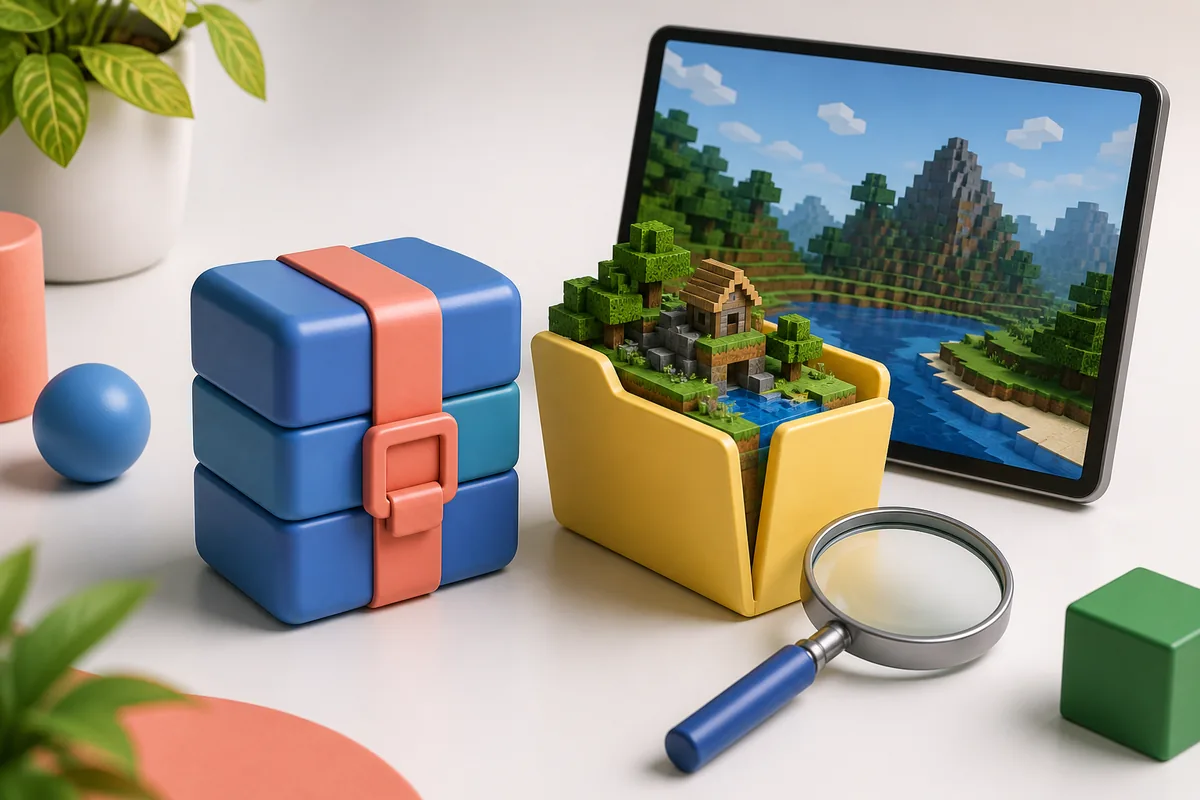
The filename is a useful first signal, not a complete safety verdict. A .mcworld package is commonly used for a Bedrock world, while a .mcpack is commonly a resource or behavior pack and a .mcaddon usually bundles add-on content. The same download page may offer more than one file, so read the description and dependency notes before choosing. If the page calls a file a Bedrock map but provides only a Java .jar or a Fabric/Forge instruction, the page and file do not agree.
A healthy source page explains what you are downloading. Look for a creator or project identity, the intended edition, a version or update date, supported platforms, a file type, screenshots that match the described map, and instructions for importing or activating dependencies. These details do not guarantee that a file is harmless, but they give you something concrete to compare with the downloaded package.
Be careful with archives that contain several nested folders. Some creators distribute a world as a zip because the browser or platform does not preserve the .mcworld association. In that case, do not guess which folder to open. Check whether the source says to rename the archive, extract a world folder, or use a particular import path. A generic archive named map.zip is not enough evidence to choose a Bedrock workflow.
Finally, keep the source URL and the check date in your notes when the map is for a server, family world, or long-term build. The source may update the map, change its dependencies, or remove an old file. Recording the edition and version beside the map name makes it much easier to reproduce a working import later.
Package decision table
Minecraft Bedrock Map Files at a Glance
Use the file type as a starting point, then confirm it against the source page. Package extensions describe a common role, not a promise that every download is correctly assembled.
World test
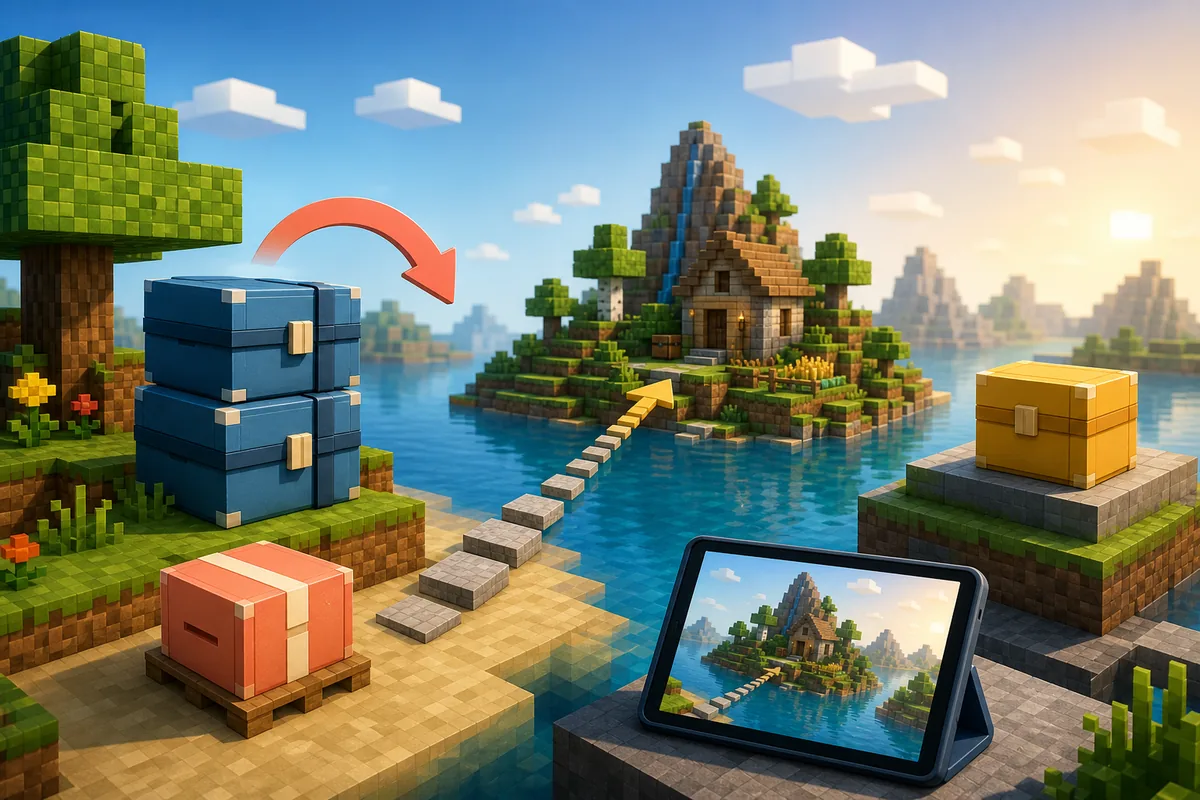
Play the Imported Map Without Risking Your Main World
A world map is not activated in the same way as a resource pack or behavior pack. After a successful .mcworld import, the main action is to find and open the new world. If the map includes packs, Minecraft may also show imported resource or behavior content that must be enabled in that world. Read the creator instructions and check the world settings rather than assuming that an imported file automatically turns on every dependency.
Use the first load as a compatibility test. Confirm that the world opens without an error, the spawn area looks like the source description, the map objective or adventure route is present, and the expected pack content appears. If the map depends on experiments, commands, a specific simulation setting, or a particular version, record that before you invite another player or copy the world into a Realm.
A copied test world also gives you a clean comparison point. If the map changes the terrain, adds a command system, or behaves differently after an update, you can delete the test copy without losing your survival progress. For large maps, allow extra time for the first load and avoid judging compatibility from the thumbnail alone.
When the test passes, keep a local backup of the working world and preserve the source notes beside it. If you later remove a pack, update Bedrock, move to another device, or share the map with a friend, the edition and version details will help you reproduce the setup instead of starting from an unexplained folder.
Troubleshooting
Common Minecraft Bedrock Map Mistakes
Most failed imports are easier to diagnose by checking one boundary at a time. Start with the source and package, then inspect the local import and the world settings.
The map is actually for Java
A Java world folder, .jar, Fabric profile, or Forge instruction is not a Bedrock import. Find a Bedrock release or use the edition named by the creator.
The file was renamed blindly
Changing .zip to .mcworld does not rebuild the internal world structure. Follow the source instructions and preserve the original file until its role is clear.
The import finished but the world is missing
Check the Play screen, restart Minecraft if needed, and confirm that the file opened with the intended app. An import message alone does not prove the world was created correctly.
The world opens with missing content
Look for required resource packs, behavior packs, experiments, or a minimum game version. A map can load while its dependencies remain inactive.
A map is tested in the only save
Use a copied world first. If a command system or pack changes the world unexpectedly, you can discard the test without losing the original.
A screenshot is treated as proof
Preview images show an intended scene, not the package version, spawn distance, dependencies, or whether the download still exists. Verify those details separately.
Continue with the right guide
Related Minecraft Edition and File Guides
Choose the page that matches the content you are actually importing. Keeping world files, packs, add-ons, and edition-specific downloads separate prevents many setup errors.
Verity Bedrock download
Review Bedrock package notes and source checks before downloading an edition-specific file.
Open Bedrock guideBedrock add-ons
Use this when the file is a .mcaddon or .mcpack and the goal is to add behavior or resource content to a world.
Read add-on stepsMinecraft resource packs
Follow this guide for texture and resource-pack formats, activation, and cross-edition checks.
Compare pack formatsMinecraft seeds
A seed creates a world from a number; it is different from importing a finished map world file.
Read seed guidanceJava vs Bedrock
Check edition boundaries when a map page, file, or installation instruction does not make the platform clear.
Compare editionsReference points
Where to Verify Platform Details
Official help and download pages are useful for checking the current app, platform, and storage context. A third-party map source still needs its own edition and package review.
Minecraft Help Center
Use the first-party help center for current device, storage, account, and game-support instructions when the exact import behavior varies by platform.
Open official helpOfficial Minecraft download page
Confirm the official game download and platform context before troubleshooting an edition mismatch caused by a third-party map page.
Open official downloadFAQ
Minecraft Bedrock Maps: Frequently Asked Questions
What file is usually used for Minecraft Bedrock maps?
A .mcworld file is a common package for an importable Bedrock world. Some sources provide a zip archive or extracted world folder instead, so check the source instructions and internal structure before renaming or opening it.
Can I use a Java Minecraft map on Bedrock?
Not automatically. Java and Bedrock use different save and content workflows, and a map can depend on Java commands, mods, or folder structures. Use a release explicitly marked for Bedrock or follow a trustworthy conversion guide for the exact map and version.
How do I install a downloaded map in Minecraft Bedrock?
Confirm the source and file type, keep the original extension, open the .mcworld package with Minecraft, wait for the import, then find the new world in the Play screen. Test it in a copied or temporary world before using a main save.
Why does my imported Bedrock map not show up?
Common causes include an incomplete import, a package that is really an add-on or Java archive, an unsupported version, a file opened by the wrong app, or an import that needs Minecraft to restart. Recheck the source notes and package type before downloading another mirror.
Is a Bedrock map the same as a Bedrock add-on?
No. A map is generally a world you load, while an add-on changes content inside a world through resource and behavior packs. A download can contain both, but the source should explain which parts must be imported and activated.
Should I test a Minecraft Bedrock map before using my main world?
Yes. Use a copied or temporary world to check the spawn area, dependencies, experiments, commands, and version behavior. Keep a backup of any working world before sharing it or moving it to a Realm.